
Under Results, test results can be centrally managed and viewed. Here, the results of all completed tests are listed.
Results page
Search and filter results
The search function allows targeted searching by the name of a test person or by the personal ID.
Additionally, an Additional Filters option is available. This allows restricting the displayed test results by:
-
Date of administration (From - To)
-
Scoring code
-
Test sequence (test battery)
-
Test
After clicking Save the selected filters are applied and only matching test results are displayed. Please note that the filter option Evaluation code is case-sensitive.
Active filters are displayed above the test results in a blue box and can be removed by clicking the X again. Afterwards, all results will be displayed again.
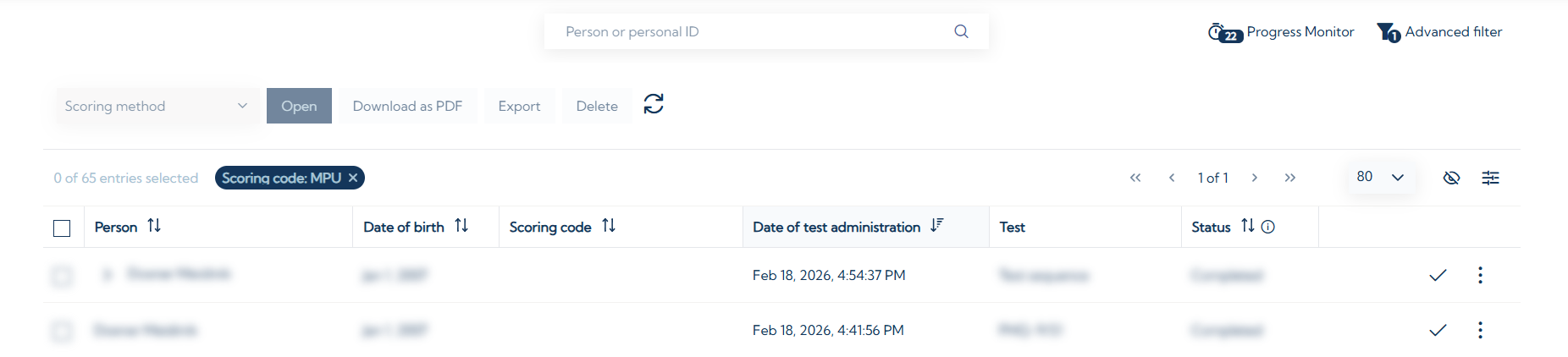
Table view of test results
On the right edge of the screen above the test results, the icon 
The icon 
Only test results from completed tests are displayed in a list view. Ongoing or incomplete tests can be viewed via the Progress Monitor.
The listing of test results can be sorted using the icon 
Actions for test results
By ticking one or more test results, they are selected. Clicking the box in the top row of the table also selects all displayed test results at once. Filtered-out test results will not be selected. After selecting the desired test results, the following actions are available:
-
Select the scoring method (see details below)
-
Open the test result
-
Download the test result as PDF
-
Export the test result
-
Delete the test result
Multiple test results can be selected simultaneously. For more information on result export please see here.
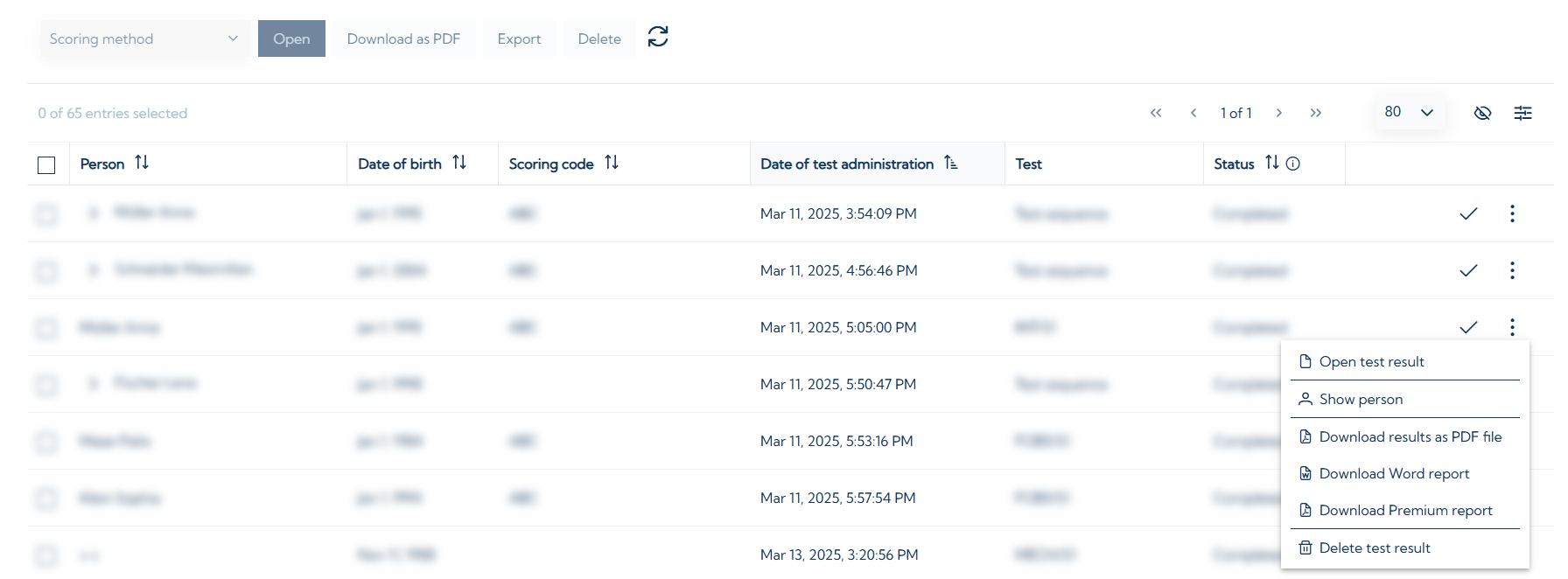
By clicking on the three dots next to the checkmark, a dialog window opens with the following additional options:
If an invitation for a test was sent via email, this is indicated by 
Scoring
The scoring shows the test results in detail. It contains information about the execution of the test (e.g., start, end, duration), information about the test person, as well as the test results. Below the general information about the test, a warning may be displayed if a criterion is met (e.g., the test was terminated prematurely).
The test results are presented in a table. In addition, the scoring may include other components such as:
-
Description of variables
-
Profile
-
Adaptive progress chart
-
Test protocol
-
Item analysis protocol
-
...
Which components are included depends on the respective test, the test paradigm, and the chosen evaluation method.
By clicking on the name of the test person, the personal data of the test person can be displayed.
When multiple test results are selected simultaneously, you can switch between the pages.

Settings in the scoring
Above the test results, the following settings can be made:
-
Selection of the scoring method
-
Selection of the norm sample, with which the test results are compared
-
Selection of the scoring language

Via Settings at the top right of the screen, you can define which information is included in the scoring. Additionally, the norm type can be set here. By clicking Apply the settings for the scoring are applied.
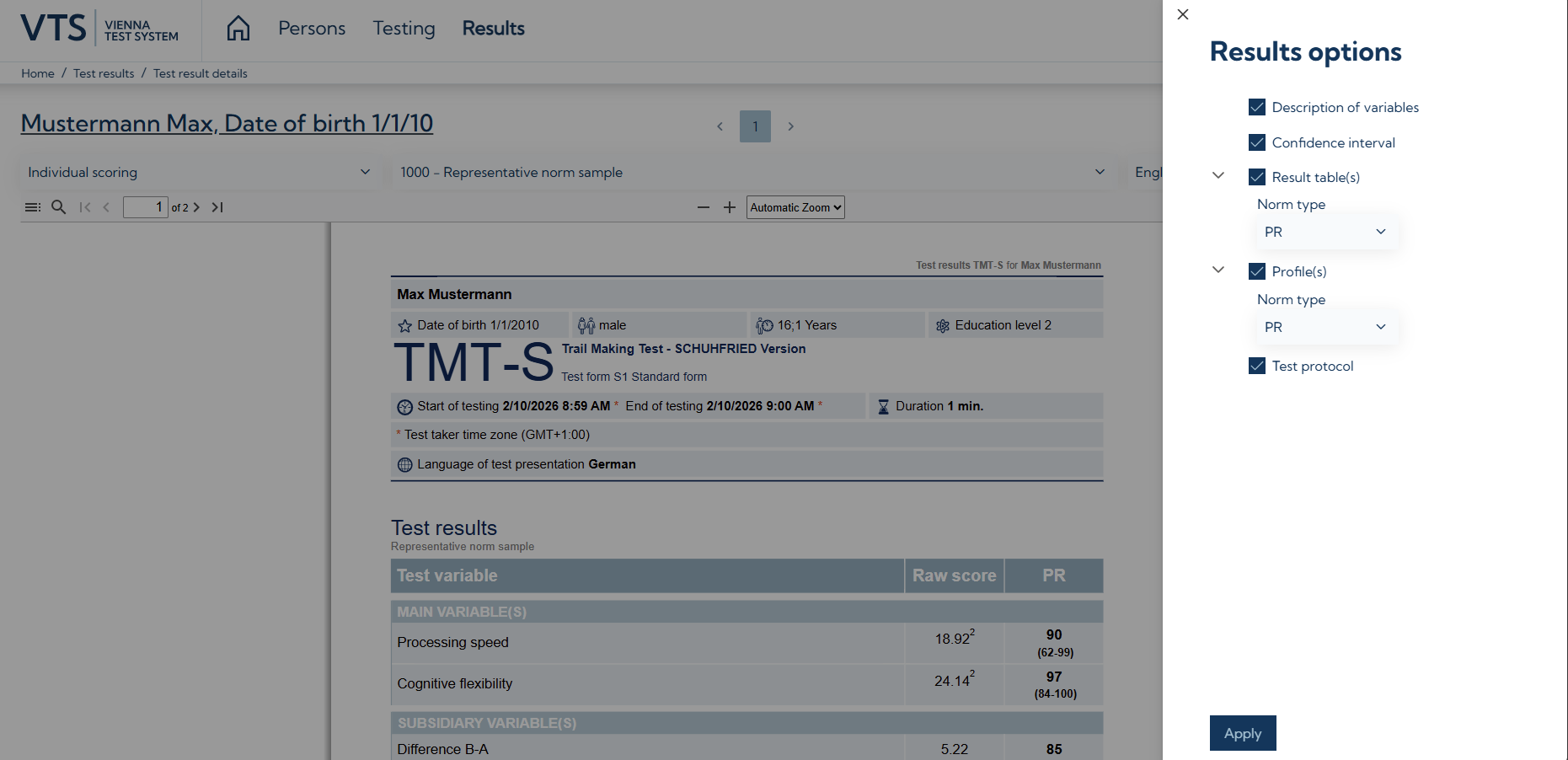
The test manual can be opened via the Manual button. The scoring can be downloaded as a PDF file via Download.
Scoring Method
The scoring method determines which information is included in the scoring.
The individual scoring provides detailed information on main and secondary variables for each test and test form. Customized test battery scoring and SFS Test solution scorings allow the presentation of test results from various tests in a combined scoring. These can additionally include an overall rating
Additional options
Print options
The test results can also be printed directly from the VTS via 

Editing the scoring
Additionally, the following editing options for the scoring are available via the respective icons:
-
Switch to presentation mode
-
Highlighting content
-
Adding text
-
Adding or editing graphics
-
Drawing
-
Via Save the scoring with the changes is downloaded.