These instructions provide a basic introduction to the Vienna Test System. They guide you through creating a new person, configuring testing, and viewing the test results.
More detailed information can be found on the corresponding pages.
Login
Go to https://vts.schuhfried.com or open your locally installed VTS on your desktop.
Log in to your account by entering your email/username and password, or sign in with your Single Sign-On (SSO) of choice (e.g. Microsoft, Google, etc.).
From creating a test person to viewing the test results
Creating a Person
Click Persons --> New person. Then:
-
Enter the personal data (fields marked with
*are mandatory). -
Review the information, save it, and proceed manually to Testing or automatically with Save and continue to selection of tests.
-
Note: You can also import multiple persons at the same time. (See Import Persons)
Starting a Testing
Under the Testing tab, available tests are shown on the left. The current test sequence appears on the right.
Note: You can filter tests and test batteries by language and testing mode.
Proceed as follows:
-
Select the tests you want to administer (drag & drop into the test sequence or select and click Add).
-
Choose the Test Form.
-
If applicable: Configure the test settings.
-
Start testing by clicking on Start testing, Invite or Proctoring depeding on your prefered testing mode (only modes supported by all tests in the sequence are selectable).
-
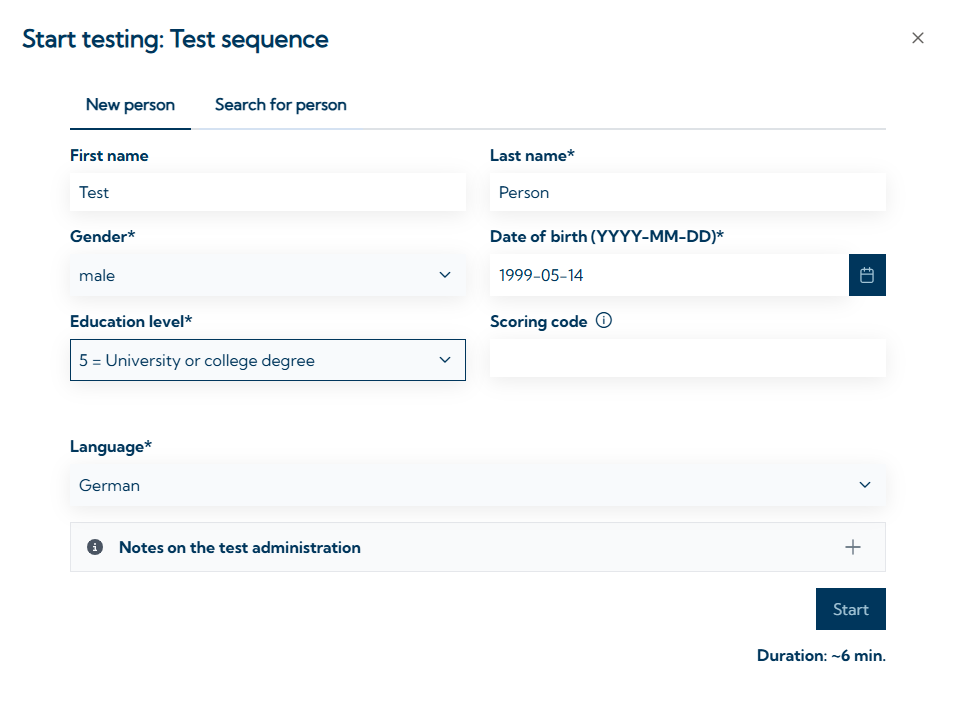
If applicable: Select a person to be tested and confirm the language.
-
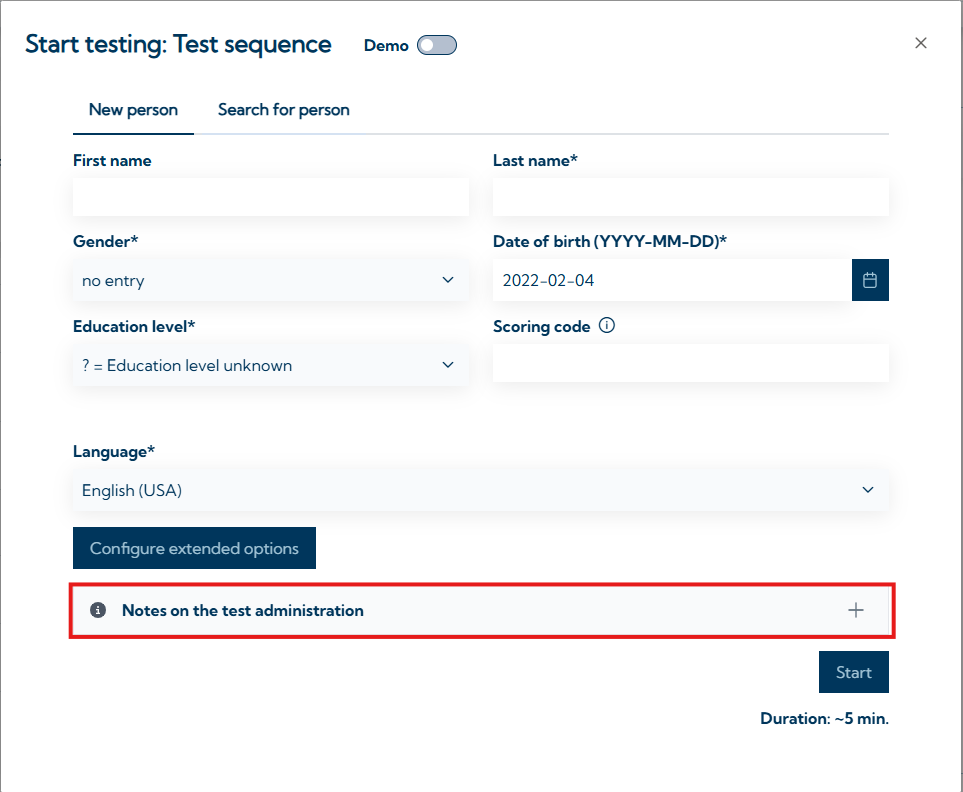
Read the notes on test administration.
-
Click Start or Send invitation to begin the testing.
During the test
During the test you have options to intervene in or monitor the test:
-
Test administrator window: For information on the test administrator window, please refer to the Notes on the test administration when starting a test.
-
Progress Monitor: To access the Progress Monitor, Click Tools → Progress Monitor. Here you can see all active and inactive ongoing Testings. For more information, visit: Progress Monitor.
Viewing test results
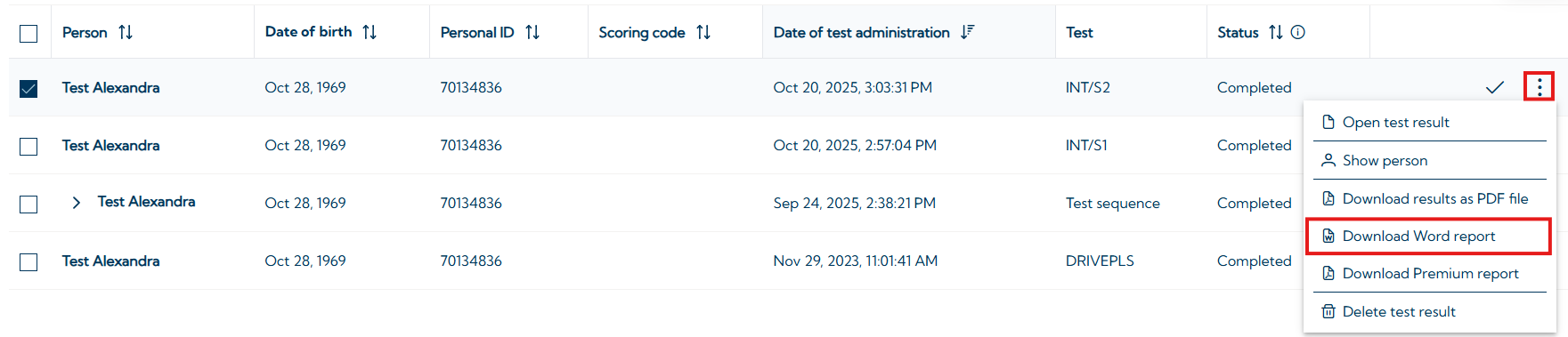
After testing is completed, open the Results tab.
A checkmark in the results table indicates that a test sequence has been completed and the results can be opened.

Individual scoring
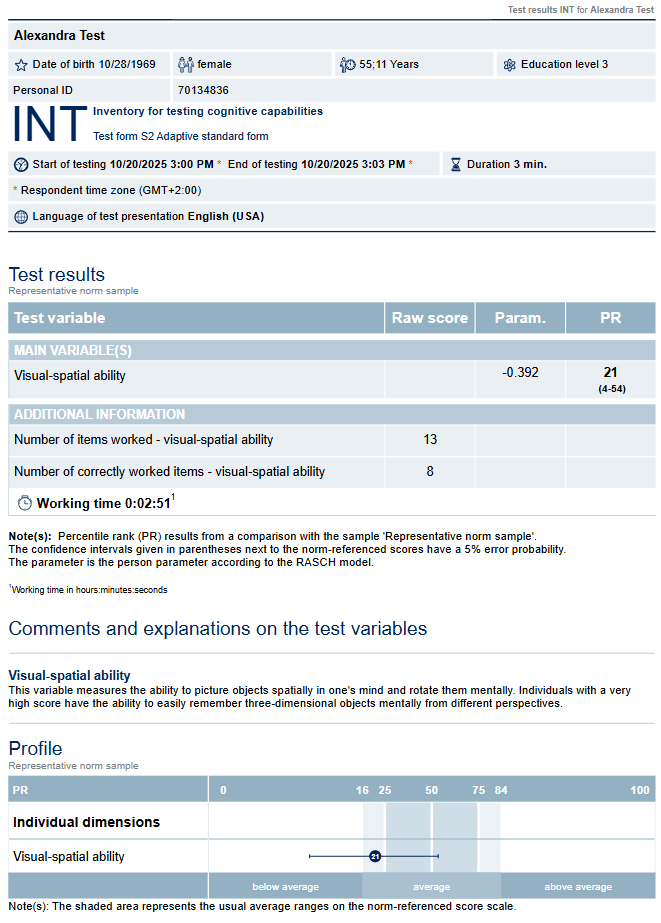
To view a result, click the corresponding row. You will see:
-
general information about the test person
-
general information about the test session
-
individual scoring results in the test result table
-
a graphical profile of the results
-
variable descriptions
-
additional information about the test session
You can also adjust the norm sample, scoring language, and other settings directly on the results page.

If you have selected multiple tests that a single test person has completed, or if you have selected test results from multiple test persons you can switch between them by using the navigation-bar on the top.

If you have a custom test battery evaluation (BATEVA), or if there’s a predefines overall scoring (SFS Test Solution) you can also switch to the evaluation by using the drop-down on the top left side of the result view.
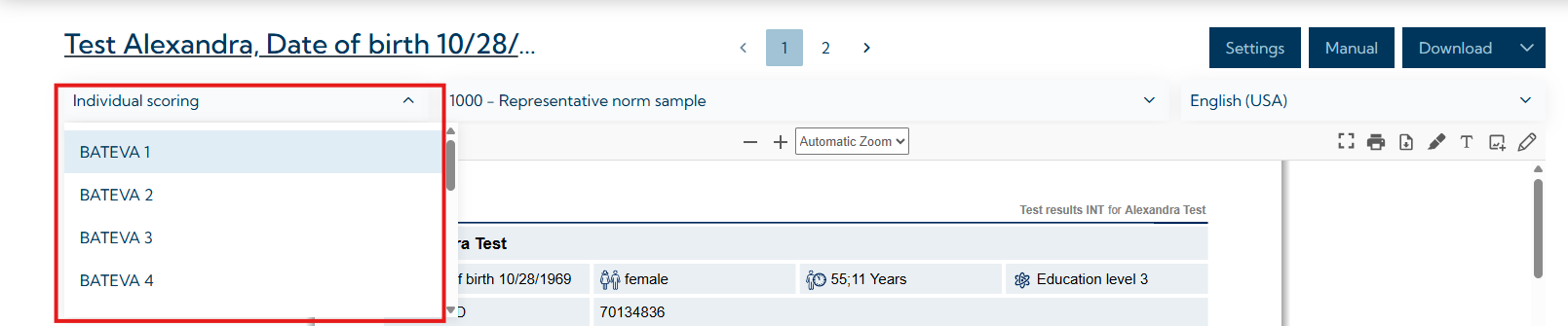
To open another result, return to the Results tab.
Word report
A word report (see: Create/import/edit Word reports) allows you to turn the numerical results of a test into clear, written text. The VTS lets you export these results into your own Word template, which you can create for individual tests or entire test batteries (BATEVA). This makes it possible to generate customized, text‑based summaries that match your specific requirements, target groups, and corporate design. The report can include flexible text modules and optional graphics, giving you a personalized and easy‑to‑interpret presentation of the results.
You can download the Word report for a result by clicking “