
Clicking the Persons tab opens the person management view.
Here, a list of all persons currently stored in the system is displayed, sorted by Registration Date by default. The list can also be sorted by any other column by clicking on the arrows 
Create a new person
By clicking the button New person, a window with several fields to fill in opens. The person’s last name, gender, date of birth, education level, and language are mandatory fields.
In the field Department, persons can be assigned to specific departments. This means that these persons and their results will not be visible to VTS users who have department filtering activated and are assigned to a different department (How to add users and limit their access).
The field Scoring code can be used to enter additional information about the person, such as occupation, diagnosis or reason for testing. The scoring code can later be used to filter different groups of persons in both the Persons and the Results tabs.
Direct Testing
If the person is going to complete their testing via Direct Testing, two additional fields are important:
Their respective test battery must be assigned in the field Test battery for Direct Testing.
In order to identify themselves and start the testing, the person must have a Personal ID number. This number can range from 1 to 2147483647 and must be unique within the VTS. If no number is entered by the administrator, it will be generated automatically.
Once all required information has been entered, the person can be saved and is then newly created in the system.
Import persons
By clicking on Import, persons can be imported using a .csv file. This option is especially useful in cases in which a large number of persons need to be created in the VTS.
Further information on data import can be found here: Import/Export of data
Filter options
In the search bar, specific persons can be searched for by entering their name or personal ID.
In addition, extended filter options are available by clicking on Advanced filter. Here, person groups can be filtered by scoring code and department.
Person-specific options
Persons can be selected by clicking on the checkbox 
By clicking on To selection of tests, you are transferred to the Testing tab, where the test sequence for the selected persons can be defined.
With Edit, the personal data of the selected person can be edited. If two or more persons are selected, only the Test battery for Direct Testing can be changed.
With Print it is possible to print the IDs or the full personal data for each person. With these options, the information for each person is printed on a separate page and can therefore be easily handed to the respective person, for example for Direct Testing.
With Export, the selected persons are exported in a .csv format. Further information on data import can be found here: Import/Export of data
Selected persons can also be deleted using the Delete button.
It is also possible to switch to a person’s test results, edit their data, or delete the person by clicking on the three-dot symbol 
Display options for person list
The person list can be customized in several ways.
By default, 40 persons are displayed per page. This number can be changed to 10, 20, or 80 using the dropdown selection 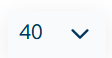
Next to this, sensitive personal data can be hidden by clicking on the eye symbol 
Certain columns (e.g., name, gender) are displayed by default in the person list. However, additional columns can be selected from a wide range of available options by clicking on the slider symbol 