
In group testing, several people are tested at the same time and under standardized conditions. In the Vienna Test System (VTS), the following options are available for conducting group testing on-site:
-
Direct Testing
-
Testing via invitation link
For both options, the PCs/laptops on which the individuals take the tests must be connected to the internet or a local network. This means that several locally installed systems without a connection to the internet or a local network cannot be used for group testing.
Below you will find an overview of the differences between the two options:
|
|
Direct Testing |
Testing via Invitation link |
|---|---|---|
|
Input/Import of personal data |
are entered or imported by the test adminstrator before the test session |
are entered by each person directly at the start of the test battery |
|
Type of tests |
all tests |
only tests that do not require a VTS Testplayer Client and are available in proctored or open mode |
|
Requires personal data |
For each person, the additional fields Personal ID and Test battery for Direct Testing must be filled in the personal data. |
mandatory personal data are sufficient |
|
Start of testing |
By entering the Personal ID in the VTS Testplayer (Client) |
by opening the invitation link and entering the personal data |
Basic requirements for group testing
-
Each test person has their own workstation with a PC/laptop.
-
If a test requires specific hardware (e.g., SCHUHFRIED Panel), it must be available and ready for use at each workstation.
-
If tests with auditory stimuli are used, we recommend the use of headsets so that test persons are not influenced by the sounds of others.
Direct Testing
With Direct Testing, the test is started by the test person entering their Personal ID in the VTS Testplayer (Client) and confirming their identity. The advantage of the Direct Testing option is that all tests from the VTS (i.e., also tests that require specific hardware) can be used. In addition, the test person only needs to confirm their personal data and does not have to enter them themselves. This avoids possible errors or incorrect entries in the person data collection.
Direct Testing is possible both with the VTS Testplayer Client and with the browser-based VTS Testplayer. The browser-based VTS Testplayer does not require installation and can optionally be used if the test battery only contains tests that are available in proctored or open mode.
Preparation for Direct Testing
-
Create a test battery (even if the test battery contains only one test)
-
Enter or import the personal data, including the fields Test battery for Direct Testing and, if applicable, Personal ID. If no personal ID is provided, VTS will automatically create one.
-
At each workstation, either install the VTS Testplayer Client or start the browser-based VTS Testplayer (in VTS under Applications). The URL of the browser-based VTS Testplayer can also be saved as a favorite in the browser if necessary.
-
If necessary, print personal key figures for each person (via the Persons area, selecting the persons and Print --> Personal IDs).
Administration of Direct Testing
-
Hand over the personal IDs to the test persons
-
Start the VTS Testplayer (Client)
-
The test person enters their personal ID and confirms their identity
-
The test battery starts
-
The progress of the test can be monitored in the Progress Monitor
-
Test results are available immediately after completion of each subtest
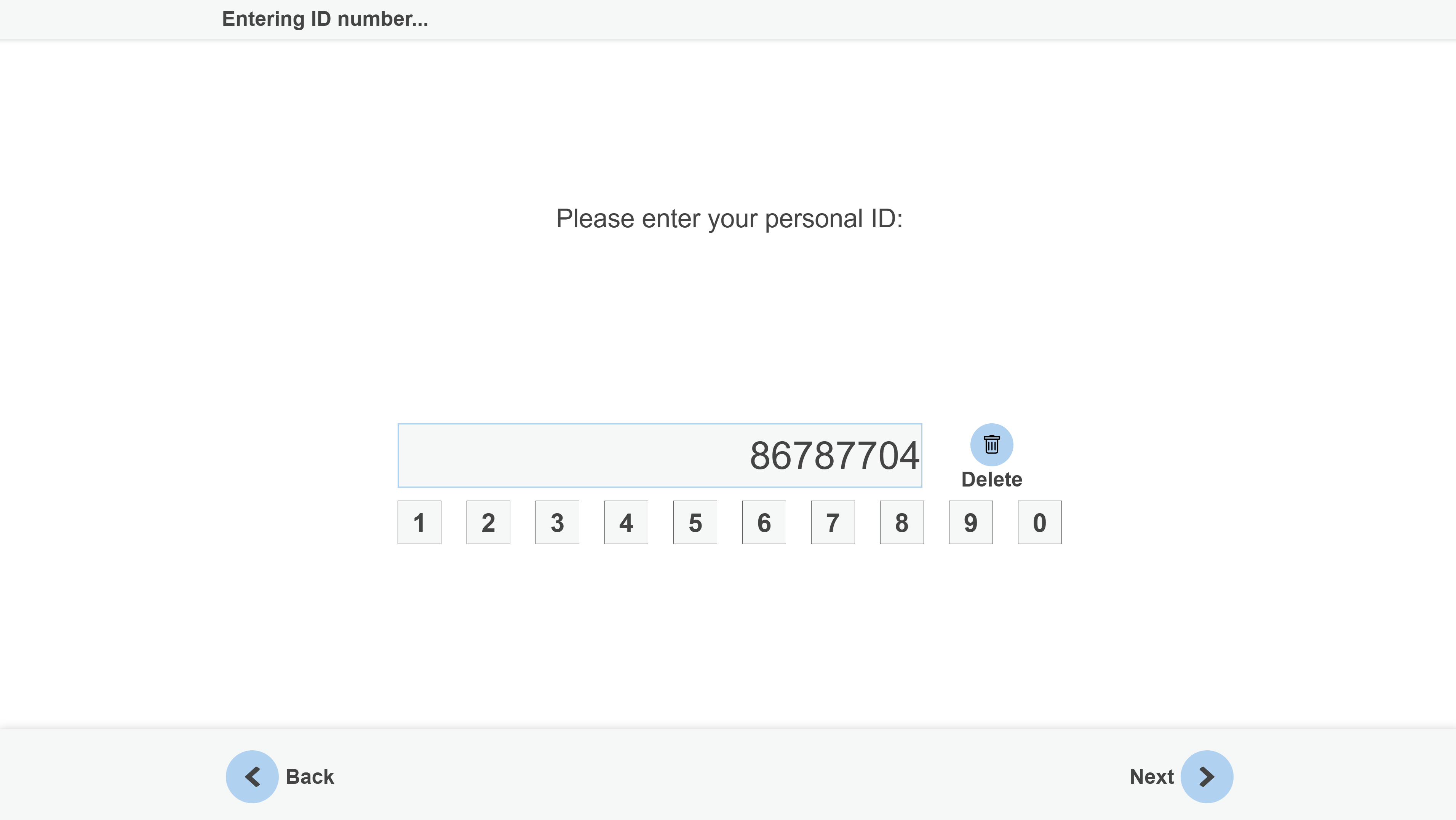
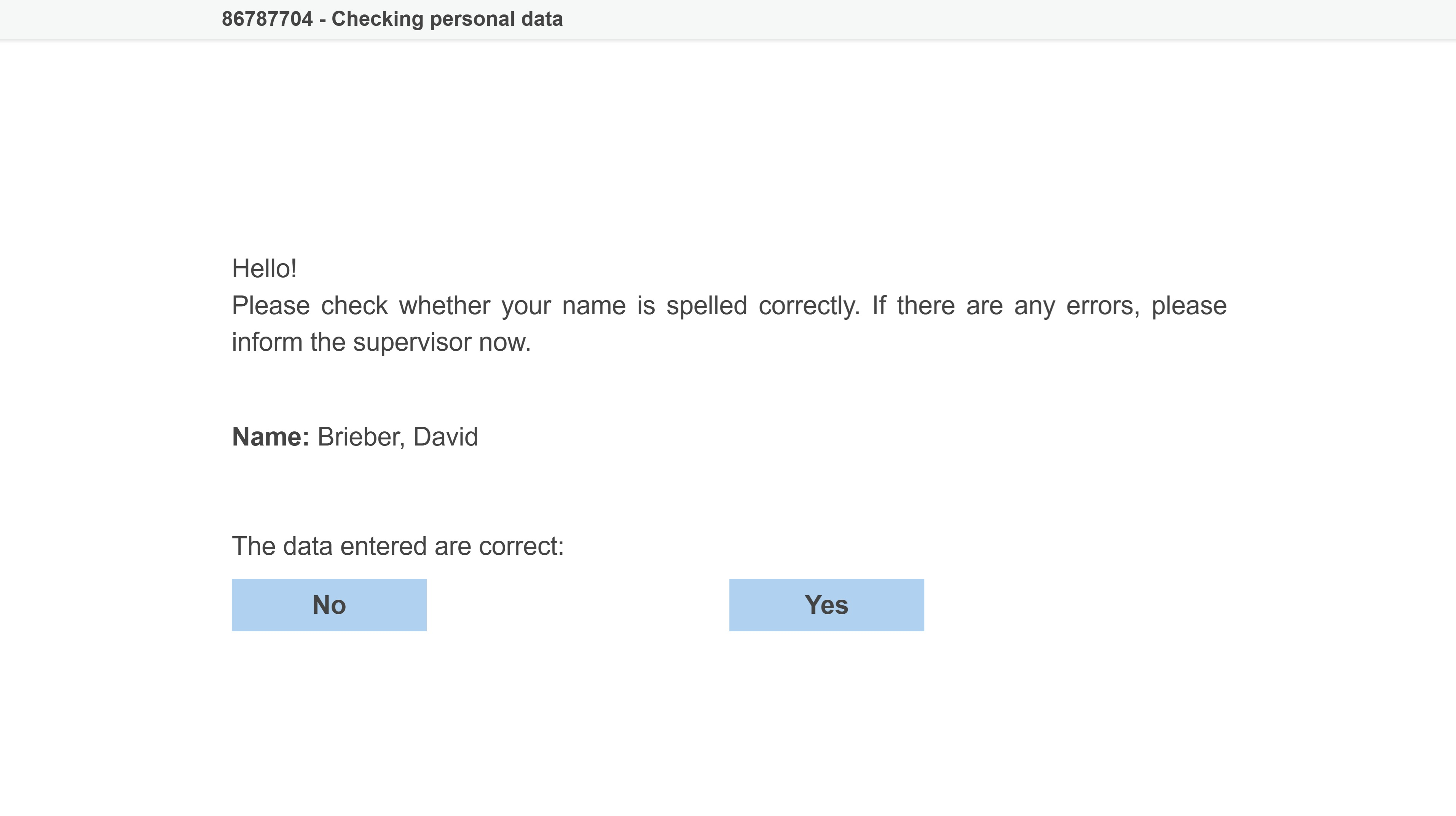
Under Settings --> Testing, you can also specify how identity verification should be carried out (confirmation of name and/or date of birth or entry of date of birth) and whether a person is allowed to repeat the test battery.
Testing via invitation link
When testing via invitation link, the test is started in the browser using a test link and by the test person independently entering their personal data. The advantage of this option is that preparation is simpler, as there is no need to install the VTS Testplayer or enter personal data in the VTS. However, as test persons have to enter their personal data themselves, incorrect entries in the personal data may occur.
Preparation for testing via invitation link
-
Create and copy the invitation link for the test battery
-
Open the test link in the browser at each workstation
Administration of testing via invitation link
-
The test person independently enters the required personal data
-
The test battery starts
-
The progress of the test can be monitored in the Progress Monitor
-
Test results are available immediately after completion of each subtest