The Progress Monitor is a tool that has been integrated in VTS online and offline by default since VTS 8.29. The real-time status of all planned, active and inactive testings can be displayed and monitored with this functionality. The Progress Monitor can be accessed directly in the VTS Portal via Tools --> Progress Monitor, without requiring any additional installation or configuration.
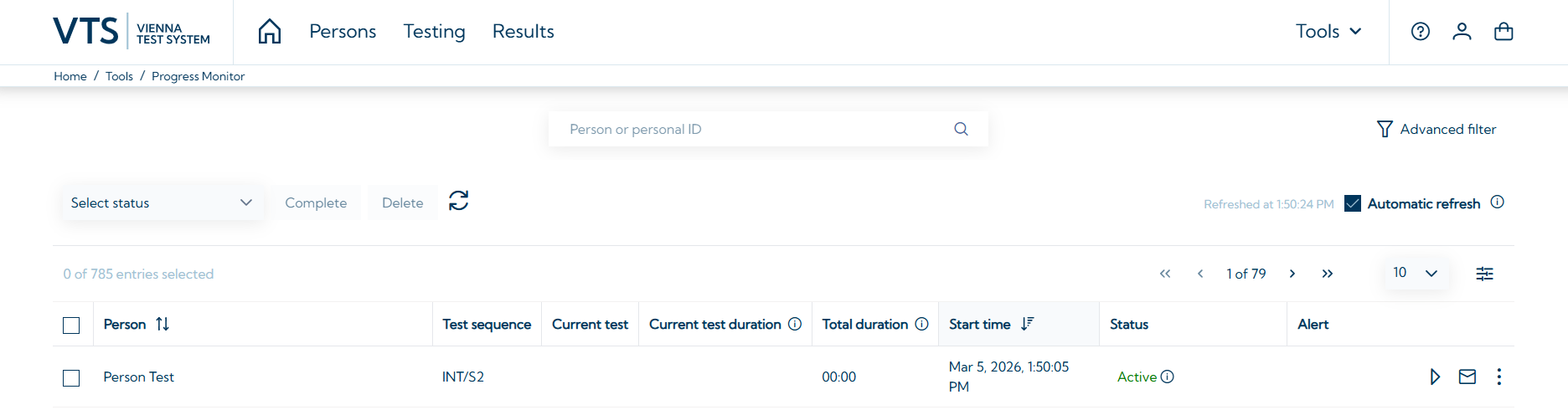
The Progress Monitor updates the status automatically every 30 seconds. The automatic refresh can be deactivated by clicking on the check-box next to Automatic refresh. If required, the dashboard can be automatically refreshed by clicking on the 
Filter and search functions:
-
You can search for people (or personal ID) in the search bar at the top center. Additional filters (device name, scoring code, test sequence, current test name) can be applied at the top right. In the top left corner, you can filter by test status, for example, to monitor only active tests. A test can have the following statuses: “Not started”, “Active”, “Inactive”, “Completed”, “Skipped”
-
Furthermore, for a better overview and faster search, the displayed columns (e.g., personal ID, current duration, expected duration, etc.) can be hidden or shown.
The following information can be displayed in separate columns:
|
Column |
Description |
|---|---|
|
Person |
As in "Persons / Results" |
|
Personal ID |
As in "Persons / Results" |
|
Scoring Code |
Specify additional information, such as occupation, diagnosis or reason for testing. Only provided if added manually before the testing. |
|
Device name |
PC/device name for Test Player Client; "Browser" when administered via browser |
|
Test sequence |
Name of the test sequence/test battery |
|
Current test |
Name of the currently conducted test |
|
Phase |
Current phase within the test: Instructions, Test Execution, Pause |
|
Current test duration* |
Time spent only on the current test |
|
Total duration* |
Total time for the entire test sequence/test battery |
|
Expected duration |
Estimated total duration of the testing (calculation as under Testing) |
|
Estimated remaining duration |
Difference: Expected Duration – Total Duration (negative sign once the total duration exceeds the expected duration) |
|
Start time |
Date and time of test start |
|
Status |
Status of the testing (Not started, Active, Inactive, Completed, Skipped) |
|
Alert |
Note if a red window is detected |
*The duration is calculated from the start of the instruction phase to the end of the testing (minus any interruptions).
Start, continue or complete test:
-
Testings with the status “Inactive” or “Not started” can be started or continued using the play symbol

-
Testings which have been completed will be visible in the Progress Monitor until the end of the day. Afterwards you can access them in the tab Results.
-
Testings with the status “Inactive” can be completed by marking all relevant persons and pressing Complete. Test results are scored solely on the basis of any available interim results. Once the test is completed, no further tests or data can be added, the test cannot be continued and one license is consumed for each completed test. This process cannot be undone. Testings which are completed this way will switch to status “Skipped”.
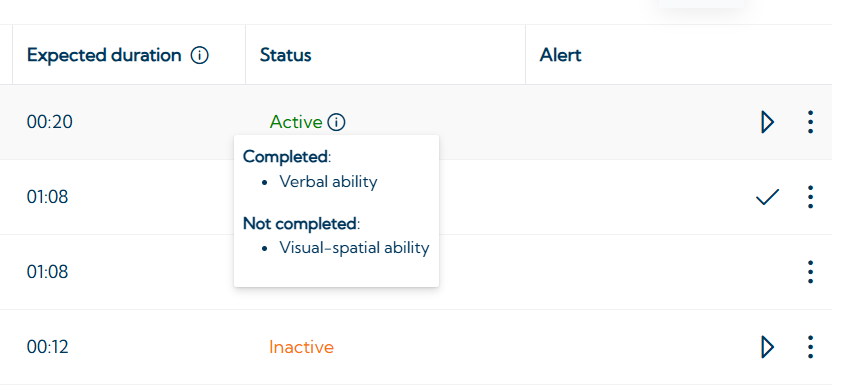
By hovering over the