
You can create and organize variables in the Set scoring tab. These variables are used for scoring the test and calculate different values based on the respondent's entries, depending on the calculation method selected.
Each variable requires an abbreviation (short name), which is displayed as an identifier when setting up the results report elements, and a full name (description), which then appears in the results report.
On the right-hand side of your variables, you will see a copy button (represented by two overlapping pages), a settings button (represented by a cogwheel) and a delete button (symbolized by a trash can).
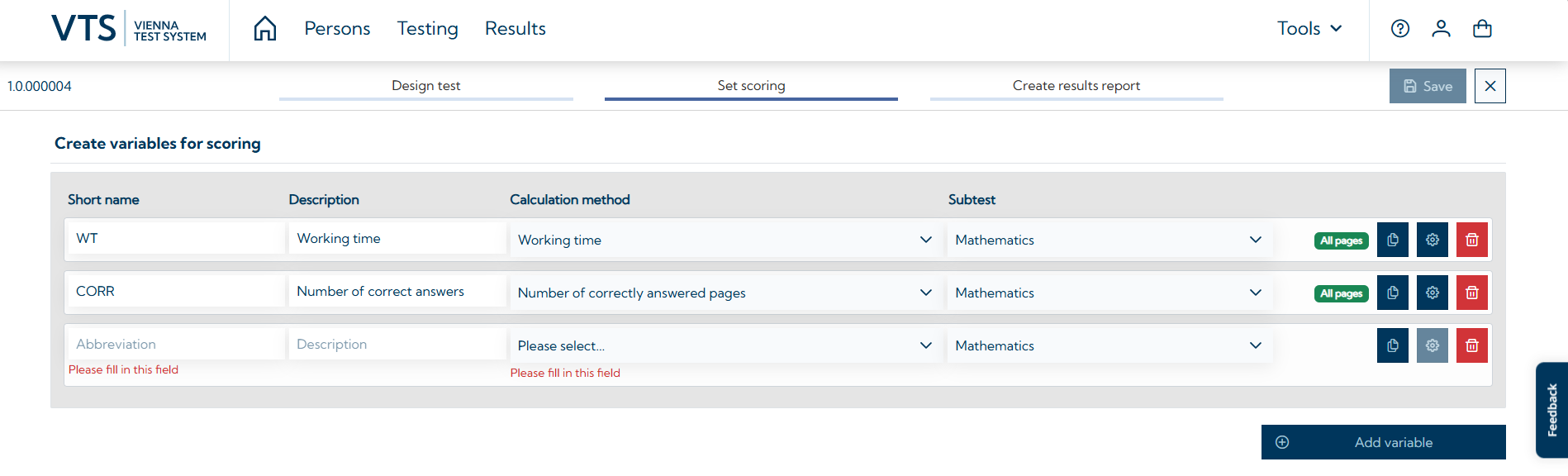
Once you have created a variable, you must define how each variable is calculated (calculation method), the subtest (see Design a new test) for which the variable is to be calculated (subtest), and specify which pages of the subtest are considered during the evaluation (Settings button). By default, all questions of a subtest are included in the scoring, which is indicated by All pages on the right-hand side. If only one subtest is defined, it is used for the calculations by default and no subtest needs to be selected for the calculation.
This guide first explains the available calculation methods, then describes the creation of scales and finally gives a series of examples, how different scorings for common types of questionnaires and tests can be set up.
Calculation methods
There are various calculation methods available. These are:
-
Number of correctly answered pages
-
Working Time
-
Number of pages answered
-
Percentage of correct answers
-
Weighted sum
-
Mean value
Number of correctly answered pages
This method calculates the number of pages where the respondent has selected all correct answer options. If multiple answer options are correct for a question, all of them must be selected by the respondent to count as correct. If a question is set so that it has no correct/incorrect answers, it cannot be scored using this calculation method. The evaluation is based on the pages that were selected for scoring via the Settings button (by default, all pages of a subtest).
Working time
This method calculates the total time it took the participant to answer the pages selected on the settings page.
Number of pages answered
This method evaluates how many of the selected questions or pages were actually answered by the participant. If a participant skips a question by clicking on the 'Next' button without entering an answer, this question is counted as skipped and does not increase the value.
Note: If you do not want your participants to be able to leave a question unanswered, you must set up a "No selected answer option" feedback. Feedback will appear if the participant tries to continue without having answered the question and they will not be able to continue until they have given an answer.
Percentage of correct answer
This method calculates the percentage of the selected questions for which the participant has chosen all correct answer options. If a question is set so that it has no correct/incorrect answers, it cannot be considered for the calculation.
Weighted sum
This method allows you to assign a specific number, i.e. a weight, to each answer option on a single/multiple choice or matrix input page. The variable is calculated by summing the weights of the selected answers on the relevant pages. Possible use cases include, for example:
Partial points: For example, you can assign one point (= weight 1) to each correct answer option and zero points (= weight 0) to incorrect answers. This method gives a better insight into the participant's performance, even if they do not select all the correct answers for a question (e.g. 2 out of 3 correct answers).
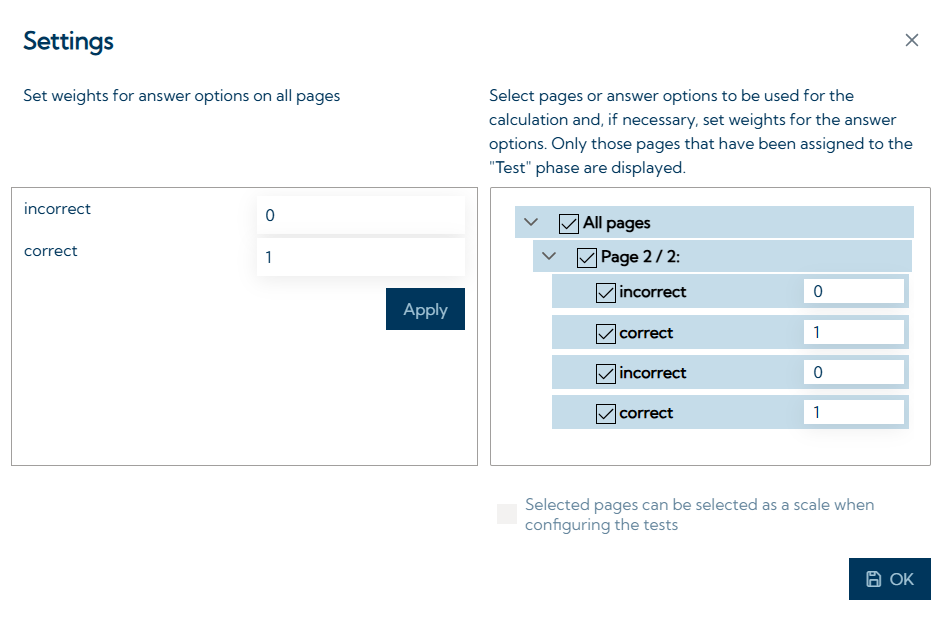
When calculating partial points, it may be necessary for the sake of a better overview to create a separate variable for each question that is scored in this way.
Rating scales: Weights can be used for scoring rating scales. These can indicate the different degrees of agreement or subjective importance of the various answer options, e.g. 0 for "strongly disagree" and 4 for "strongly agree" with various gradations in between.
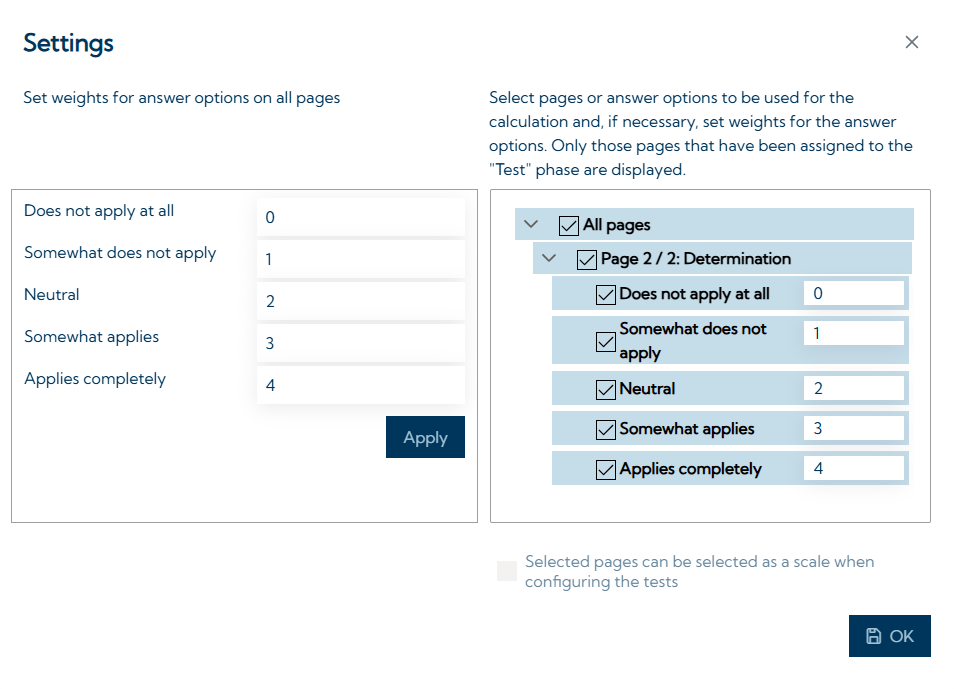
Note: If the same weight is to be assigned to the same answer options across several questions, this can be assigned automatically by assigning the weights to the answer options on the left-hand side of the Settings window and then pressing Apply. In the example above the answer option "Does not apply at all" would be assigned the weight 0 on all pages in the test where it occurs.
Please note that the weights can currently only be set only on page level. That means that setting different weights in different variables for the same page does not work.
Mean value
This method calculates a mean value based on the weights of the answer options. To do this, the sum of the weights of the selected answer options is divided by the number of selected answer options. The weights are set as described in the weighted sum calculation method (see section 3.1.5). Possible use cases include, for example:
Scale means: you use rating scales (e.g. with response options from “strongly disagree” to ‘agree’, where each response option is assigned a weight (e.g. 0 for “strongly disagree”). If, for example, a person chooses answers with the weights 1, 1 and 3 across three pages, the mean value across these three pages can be calculated using this calculation method (mean value = (1+1+3) / 3 = 1.67).
Note: As the number of selected answer options is used for calculation, it is not recommended to use this calculation method for test pages with multiple-choice answer input (on test pages of the single/multiple choice type).
Scales
By default, all test pages within a subtest are included in the variable calculation. If only some of the questions or test pages are relevant for the calculation of a variable, you can deselect those that are not relevant in the settings of the variable. For a better overview, we recommend naming your test pages in the Design test tab in the Page label field. An example of this can be found in the screenshot below:
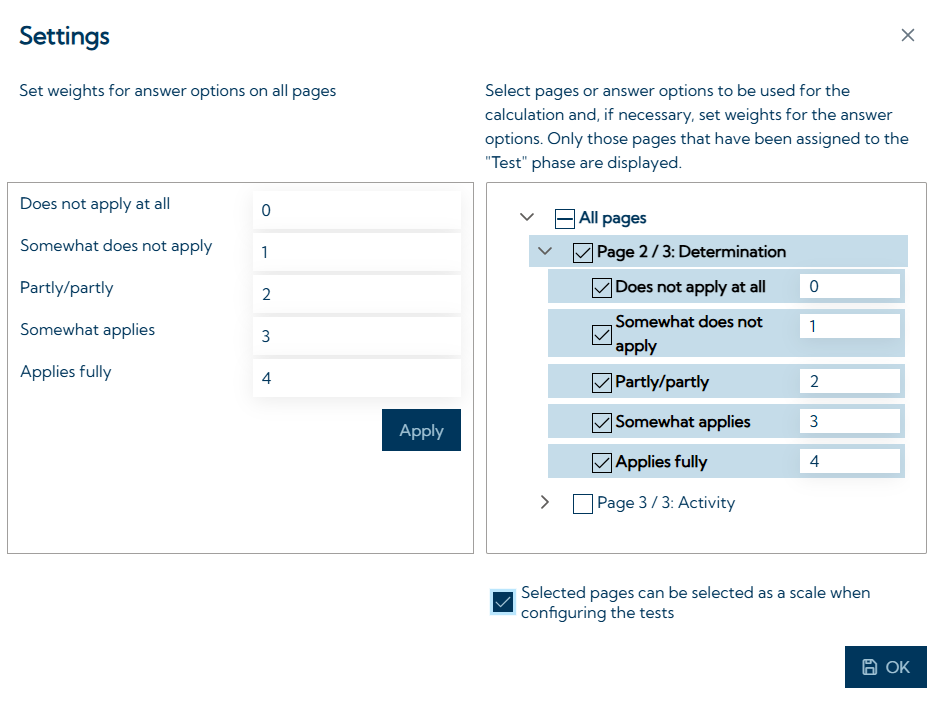
In the example above there are two test pages (page 1/3 is an instruction page and therefore not shown in the variable settings). For the variable that captures "determination", only page 2 was selected for scoring, which also has the corresponding content.
Activating the option Selected pages can be selected as a scale when configuring the test at the bottom of the variable settings allows the scale to then be selected when configuring the test presentation in the VTS. This option makes it possible to show the participant only some questions/test pages for testing. In the example above only the question on "Determination" could be presented to the test person, for example, but not the question on "Activity".
Attention: Please note that the use of selectable scales is only possible if your test consists of test forms that only contain one subtest each. This is due to technical limitations and must be taken into account when creating the test.
Evaluation examples
Correct / Incorrect answers: Knowledge test template
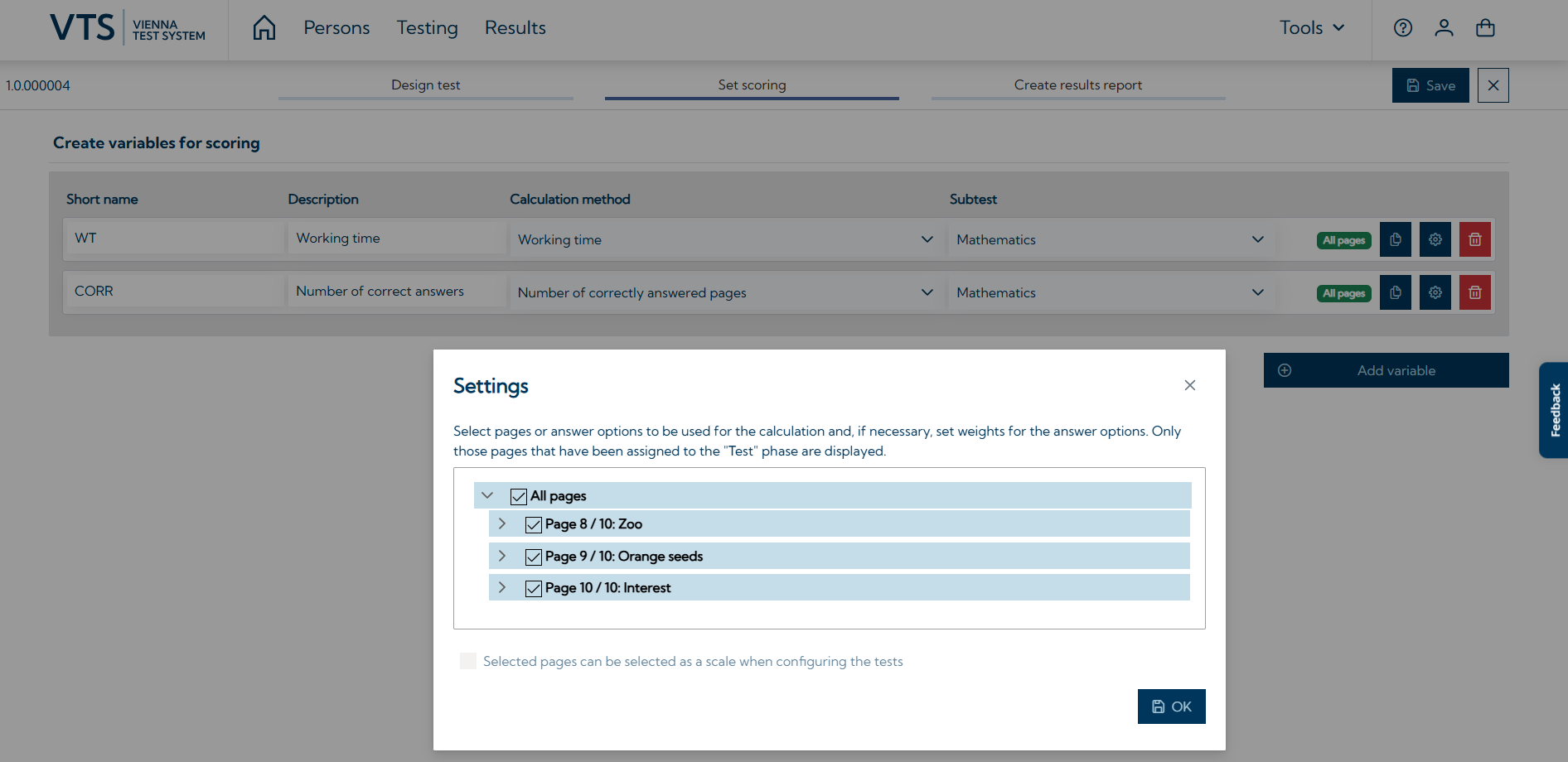
Our knowledge test template comprises 10 pages: 6 text pages, 1 sample item and 3 test items. The test items each have one correct answer. In this example of scoring, we have created two variables. The variable "WT" measures the time it takes the participant to go through all three test pages by applying the working time calculation method to all pages. The variable "CORR" indicates how many of the three questions were answered correctly in the test phase by applying the calculation method Number of correctly answered pages to all pages:
Personality questionnaire with dichotomous response format
You have created a test with 12 single-choice pages designed to measure four personality traits (E.g.: "sociability ", "creativity", "independence" and "conscientiousness") to be captured by the respondent's self-assessment. Each page consists of a statement and the option of agreeing or disagreeing with it. Each question is set to no correct/incorrect answers and single-choice. In this example, each personality trait is measured by three questions (in a real test, more questions may be needed to ensure sufficient measurement accuracy).
For scoring, create a variable for each of the four scales (the measured personality traits) and select Weighted sum as the calculation method. Use the variable setting to enter 0 as the weighting for "disagree" and 1 as the weighting for "agree" and press "Apply".
Then, in the Settings window for each variable, deselect all pages and select only those pages that are relevant for your scale variable, e.g. only the 3 pages that are relevant for conscientiousness.
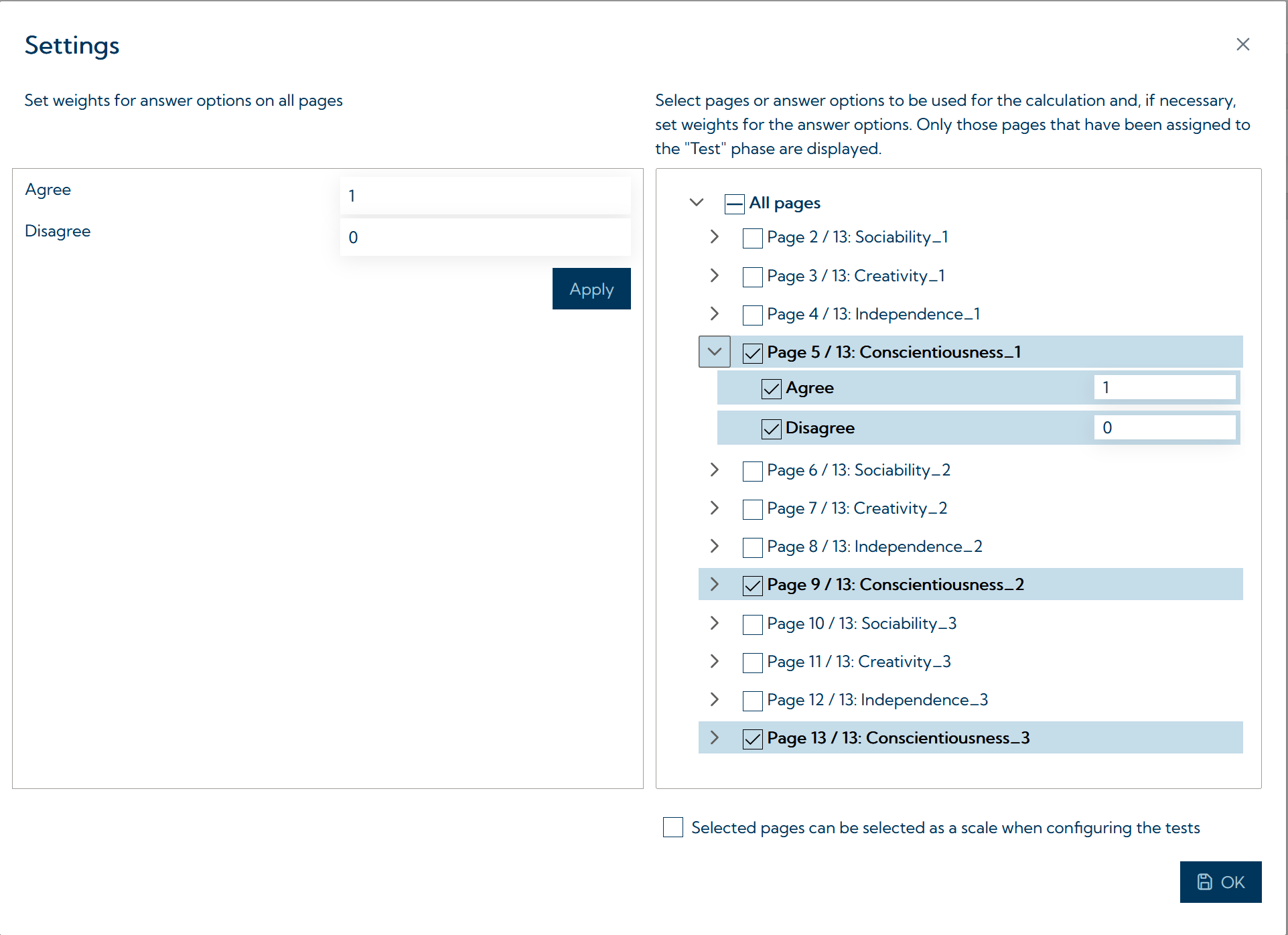
Optionally, it is possible to make the scales selectable (activate checkbox Selected pages can be selected as a scale when configuring the tests) in order to adjust the test presentation as required (e.g. show your participant only the questions for "Conscientiousness" and "Independence").
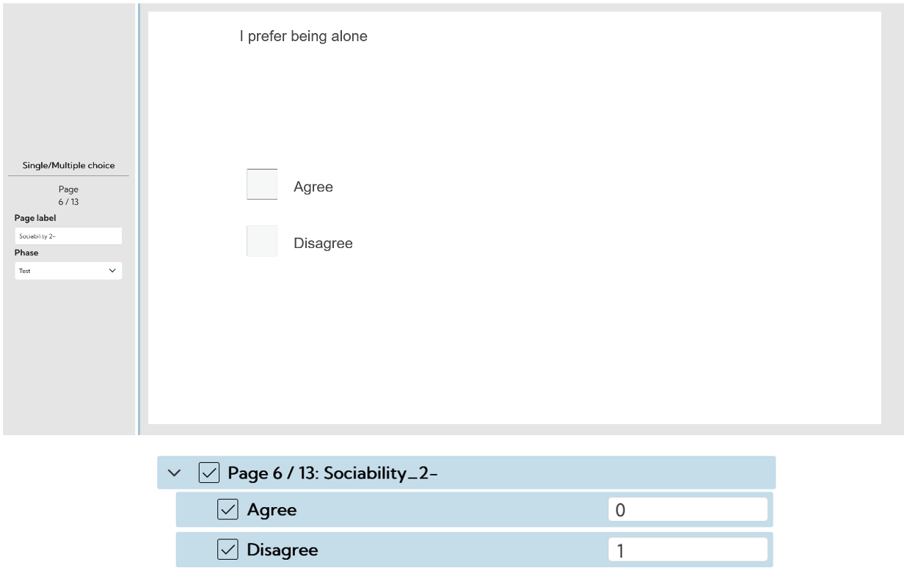
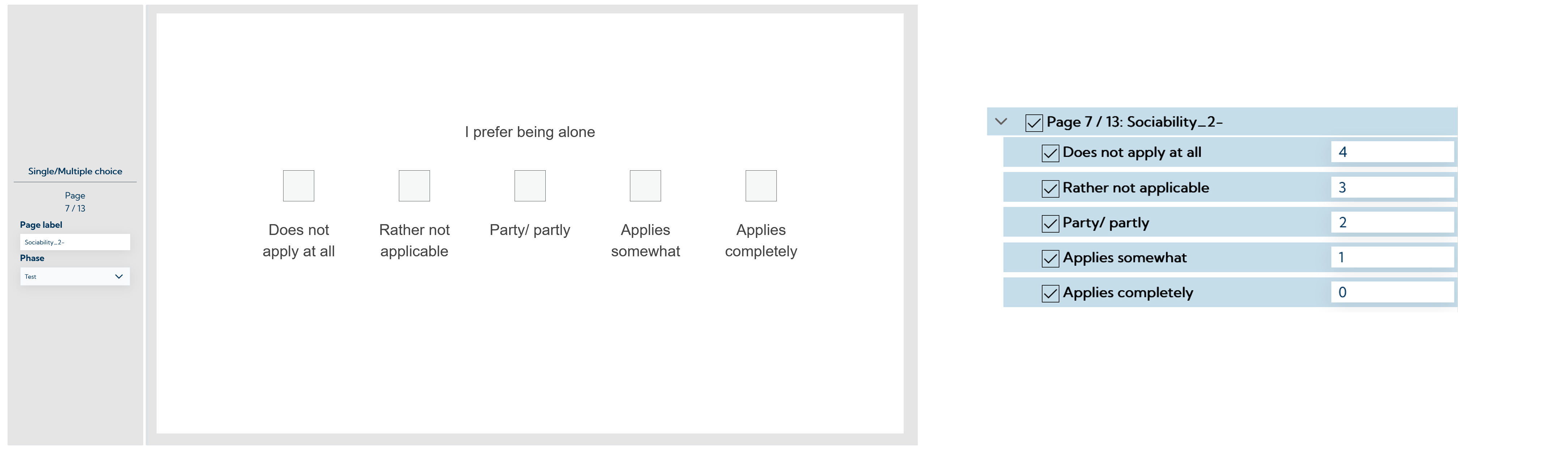
For questions where the polarity / key is reversed (e.g. "I prefer to be alone" for "Sociability"), you must adapt the assigned weights manually (set Agree → 0; Disagree → 1). For a better overview of the weighting of the individual questions, it is advisable to clearly label the pages, e.g. to use a “-“ in the page label for items with reversed polarity.
Personality questionnaire with Likert-scale response format
You have created a test with 12 single-choice pages designed to measure four personality traits (E.g.: "sociability", "creativity", "independence" and "conscientiousness") to be captured by the respondent's self-assessment. On each test page, a characteristic (e.g. "I like meeting new people") is described and the respondent is asked to rate themselves on a scale from "Does not apply at all" to "Applies completely". Each question is set to no correct/incorrect answers and single choice.
You create a variable for each of the four personality traits measured and select "Weighted sum" as the calculation method. Using the variable setting, enter e.g. 0 as the weight for "Does not apply at all" to 5 for "Applies completely" and press Apply. Then deselect all pages and select only those pages that are relevant for your scale variable (e.g. only the pages that are relevant for "Conscientiousness"). An example is shown below. As described above it is also possible here, to make the scales selectable for test presentation configuration.
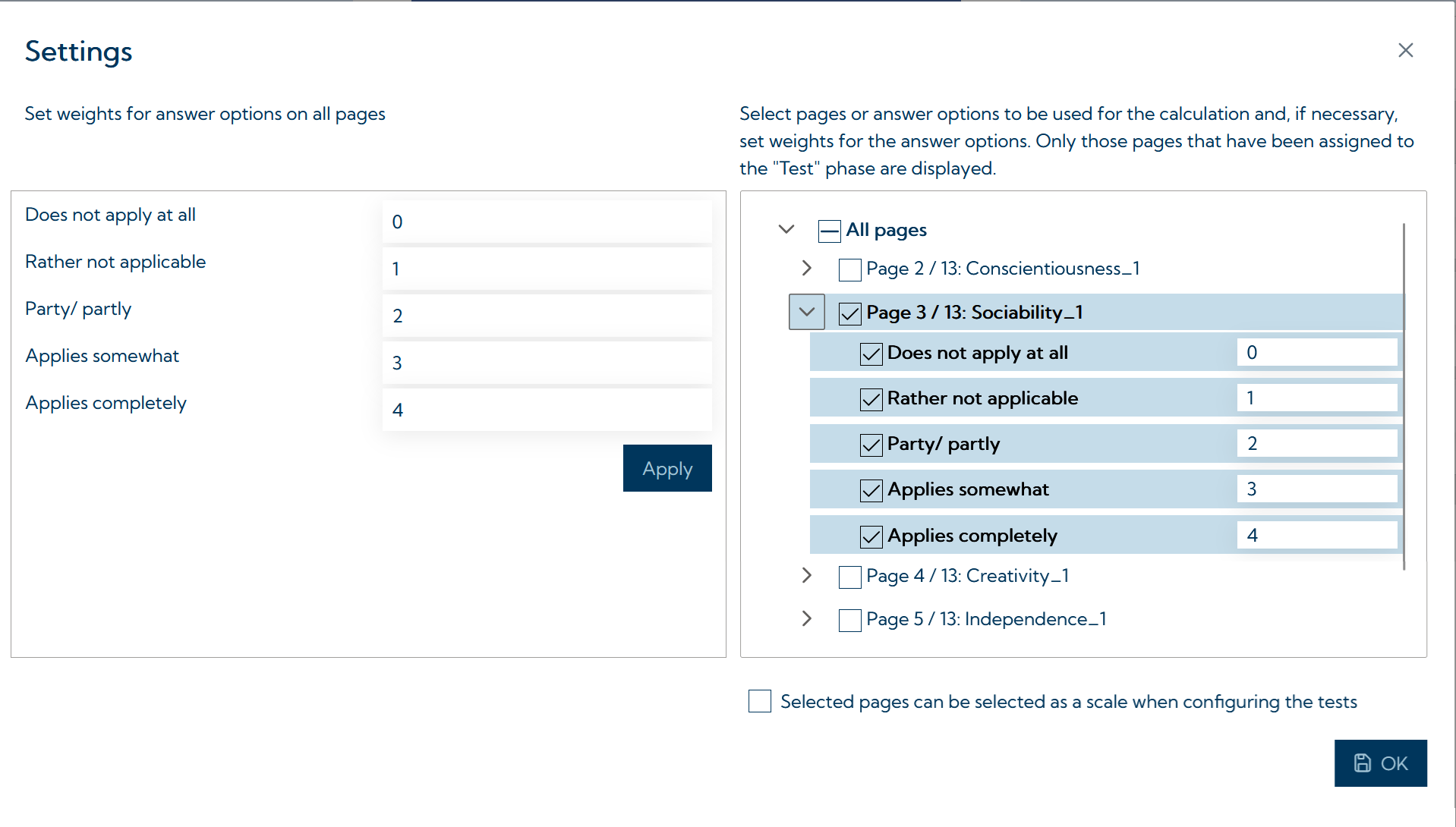
For questions where the polarity / key is reversed (e.g. "I prefer to be alone" for sociability), you need to adjust the weights manually, e.g. for "Applies completely" → 0, "Applies somewhat" → 1, "Partly / Partly" → 2, "Rather not applicable" → 3; "Does not apply at all" → 4. An example of this is shown below:
Rating scale based on matrix input
You have created a test based on the matrix input page type. On each page there are 4 statements about one’s own personality (each capturing a different trait) and 5 answer options from 1 (Does not apply) to 5 (Applies very much), see the example below:
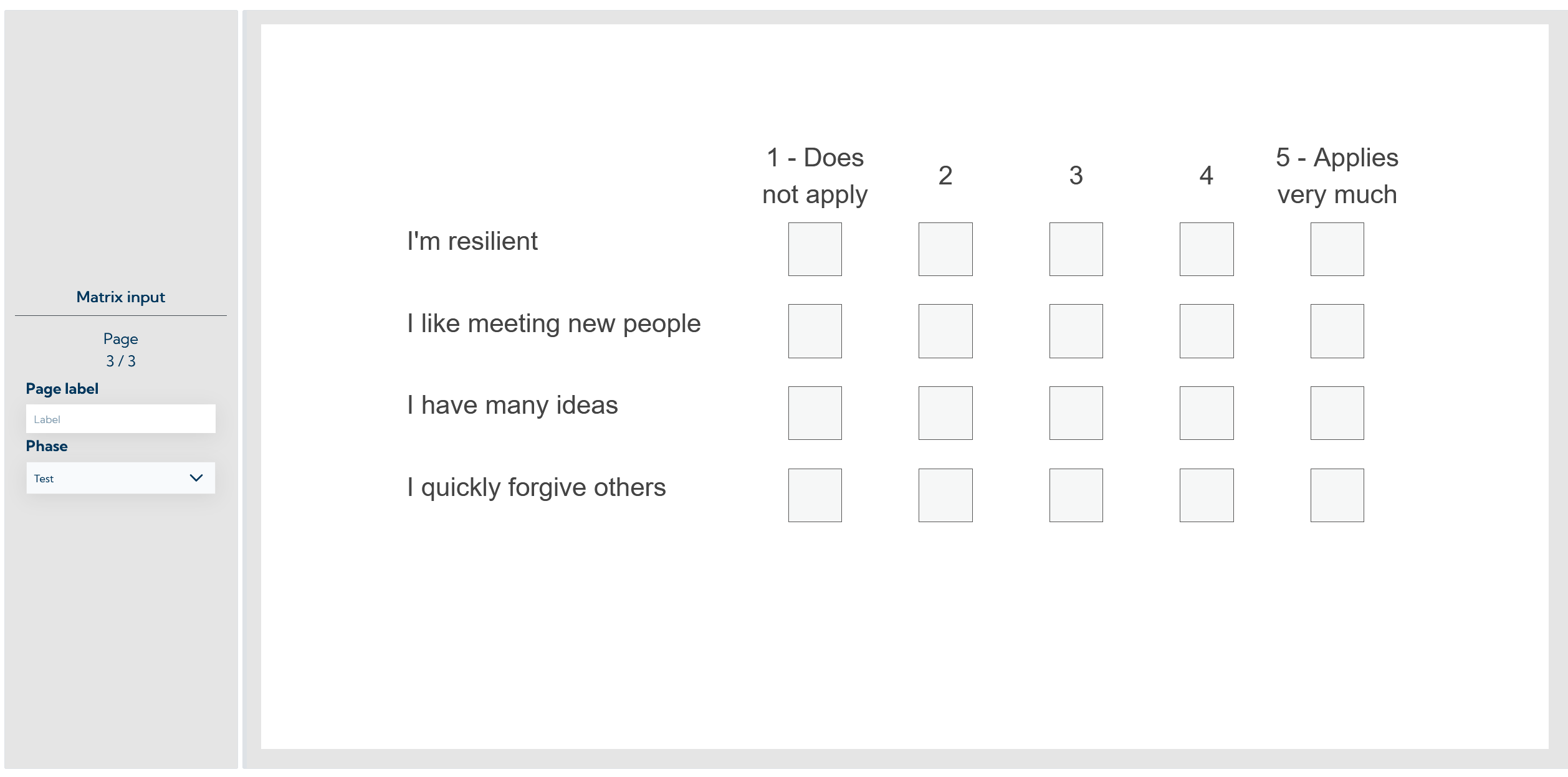
You create a variable for each of the four traits measured and select Weighted sum as the calculation method. Using the variable setting, enter 1 as the weight for 1, 2 for 2 and so on up to 5 for 5 and press Apply.
Then deselect all pages and select only the answers (not the whole pages) that are relevant to your scale variable (E.g. "I like meeting new people" on page 1 and "I quickly strike up conversation with others" on page 3 for sociability), see the screenshot below:
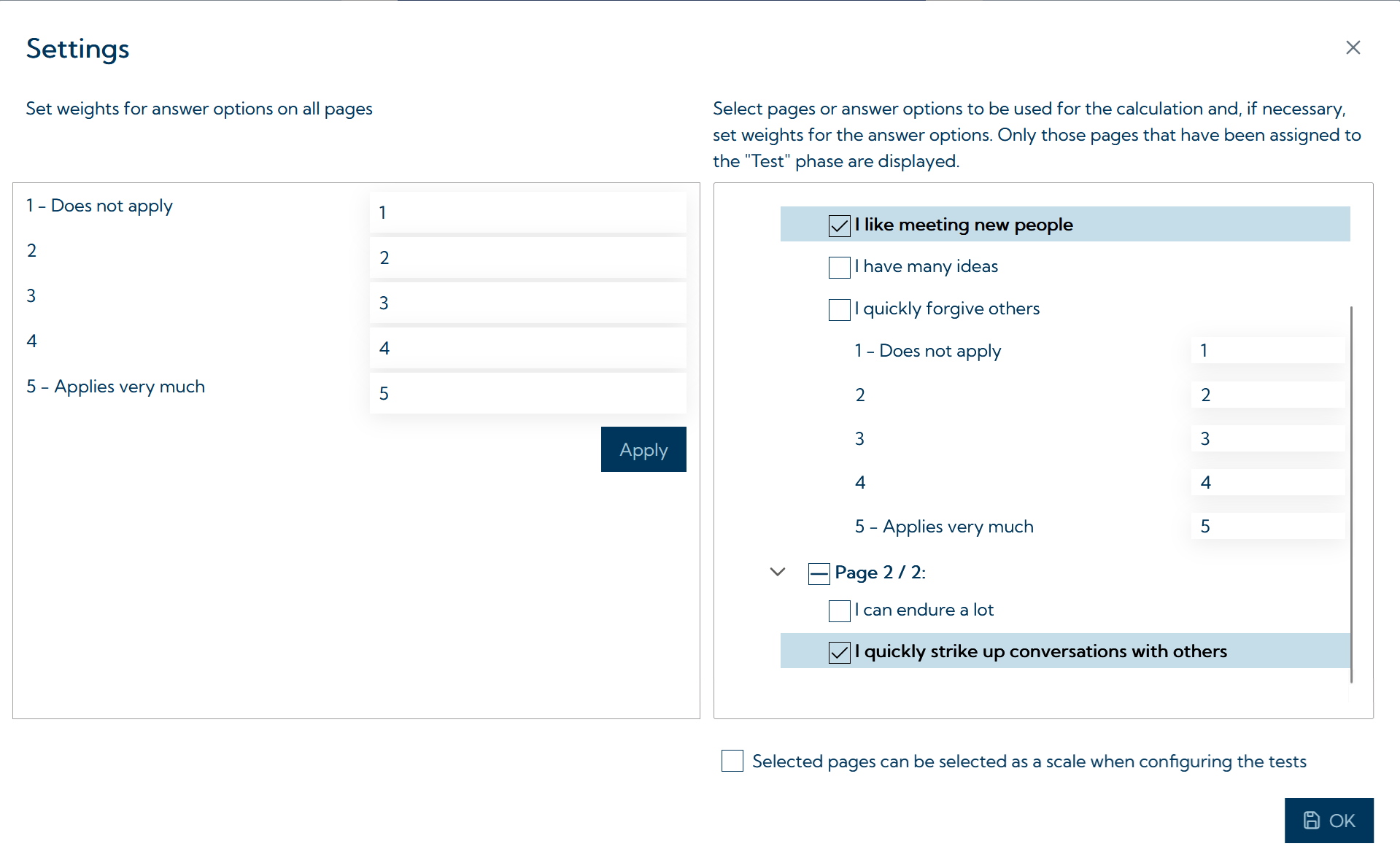
Please note that for pages with matrix input, the weights for each question on the page are always the same. You cannot adjust the weights for individual questions (e. g. single items with reversed polarity) for scoring. It is therefore advisable to only use questions with the same polarity per page on pages with matrix input (if the Weighted sum calculation method is used for scoring).
Please note: Although it is possible to select individual questions on the page for scoring when using pages with matrix input and therefore also to make these selectable as a scale, the entire page with all the questions on it is always shown. Depending on the use case, it may therefore only make limited sense to define selectable scales when using pages with matrix input.