
The VTS Analytics interface can be accessed from the left-hand side menu, which is available on all pages of the dashboard.
You can minimize the side panels by pressing the respective menu button again. This allows you to maximize the available visualization area.

Navigation
The Navigation menu allows you to move between the different pages of VTS Analytics.
You can also use it to return to the starting page at any time.

Filters
The Filters menu allows you to define which test results are included in your analysis. The selected filters determine which data are displayed across all pages of VTS Analytics.
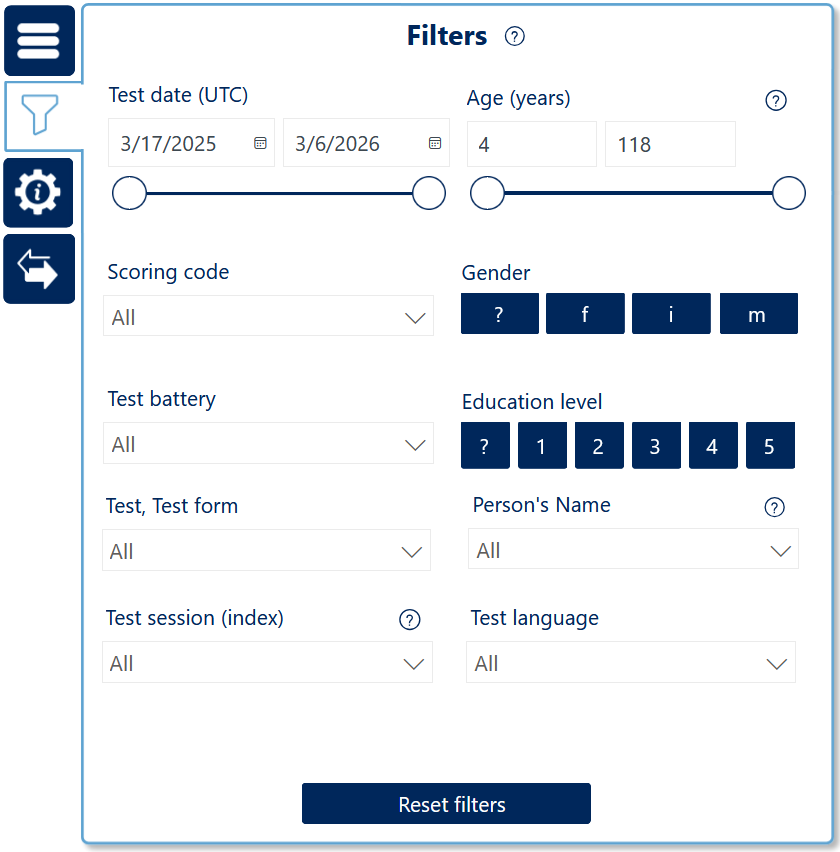
The following filter variables are available:
-
Test Date: Filters results based on the date on which the test result was created.
-
Scoring Code: A custom string that can be assigned to each test person in VTS Online.
-
Test Battery Name: The name of the test battery or the SFS Test Solution used.
-
Test / Test Form: The specific test procedure and the test form used.
-
Test session (index): Indicates the sequence of repeated test administrations for a person. Each time a person completes a test, the session number increases, regardless of whether a parallel test form is used.
Example: If a person completes TMT-S test form S1 and later TMT-S test form S2, these results are counted as test session 1 and test session 2. -
Age (years): The age of the test person at the time of testing. If test results span multiple years, each result is associated with the age at the respective test date.
-
Gender
-
Education Level
-
1 – Compulsory schooling not completed (less than 9 years of school) or special school
-
2 – Compulsory schooling or immediate secondary school completed (9–10 years of schooling)
-
3 – Technical school or vocational training completed (10–12 years of education)
-
4 – High school graduation with university entrance qualification (12–13 years of schooling)
-
5 – University or college degree
-
? – Education level unknown
-
-
Person’s Name: If multiple persons share the same name, they are distinguished using gender, age, and the system ID.
-
Test Language
Filters apply to all pages of VTS Analytics. If you change a filter selection:
-
the visible data change on every page
-
the available persons in Settings are updated
-
the calculated sample statistics are recalculated
Resetting the filters also applies globally across the dashboard.

Settings and information
The Settings and Information panel allows you to configure page-specific options.
Each page typically contains:
-
a description of the page’s purpose
-
configurable analysis settings
-
additional tables that can be used for filtering or cross-highlighting
Some pages require mandatory settings before data can be displayed. In such cases, the interface guides you with orange arrows and highlighted elements. For example, on the Results - Comparison of persons page, at least one person must be selected before the visualization can display data.

Interactive highlighting
Some pages support interactive highlighting, which allows you to explore relationships within the data without applying filters.
Instead of restricting the dataset, interactive highlighting temporarily emphasizes the selected data points in other visualizations on the page. For example, on the Tests - Overview page you can select elements within a chart to highlight related data in other charts.
You can select multiple values simultaneously by holding Ctrl + Left Click while selecting additional elements.