
For many users who are already familiar with VTS 8, VTS 10 introduces a number of changes. This page provides an overview of where to find commonly used VTS 8 features in the VTS 10 user interface.
What is the new VTS 10 user interface?
With VTS 10, the new user interface (UI) became the standard. It is now displayed in blue and white instead of the grey VTS 8 design. The new UI expands the functionality of VTS while continuing to provide most of the features available in VTS 8 (see: Can I update from VTS 8 to VTS 10? for additional information).
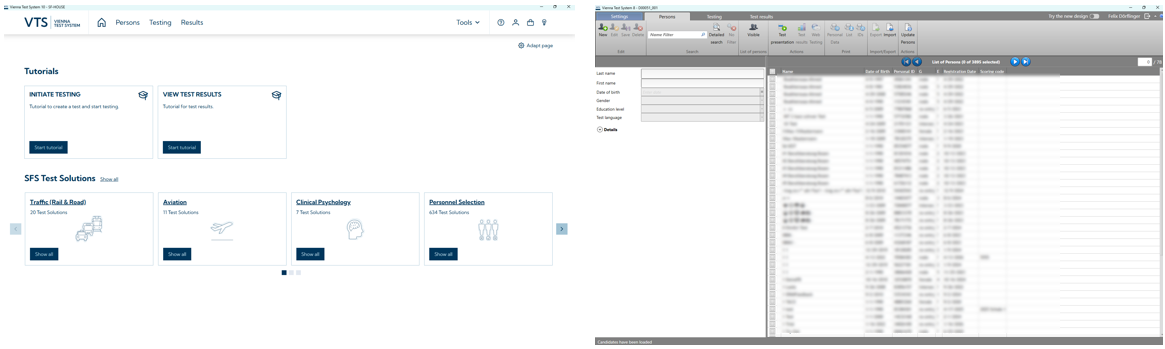
The VTS 10 user interface is now the same in VTS online and local VTS. Starting with VTS 8.28, the new user interface (UI) became the default. However, it was still possible to switch back to the previous UI. In VTS 10, switching back to the previous user interface is no longer possible.
To ease transitioning from the old to the new user interface, the following section highlights the major differences and where to find all relevant features.
Where can I find the features I’m currently using in the new VTS 10?
What do I see after starting the VTS?
You will see a landing page that display different key functions (e.g. Tutorials, the SFS Test Solutions). In VTS 10 you can customize, what is shown on that landing page (by clicking Adapt page in the top right). You can reach the landing page after clicking on the 
The Persons tab is directly opened and you will see the list of test persons in your system.
Where do I manage or create test persons?
Primarily on the Persons tab: 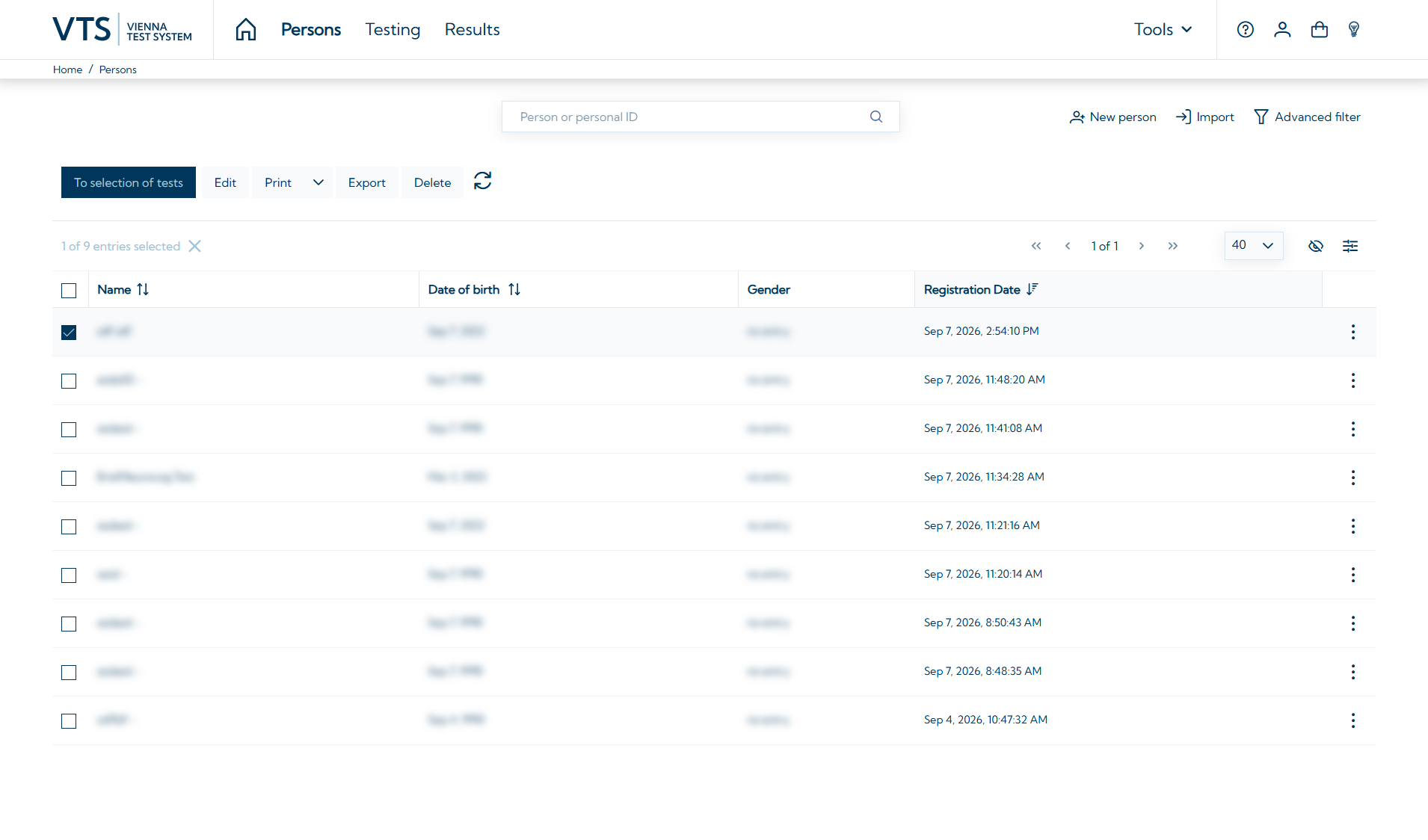
In addition, you can first select the test, test battery or SFS Test Solution you want to administer and directly create a new person (or select an existing person) in the new UI after clicking on Start testing or Invite
On the Persons tab (directly shown after opening the VTS).
Where do I start testing?
You can view available tests and SFS Test Solutions on the Testing tab and start the testing from there 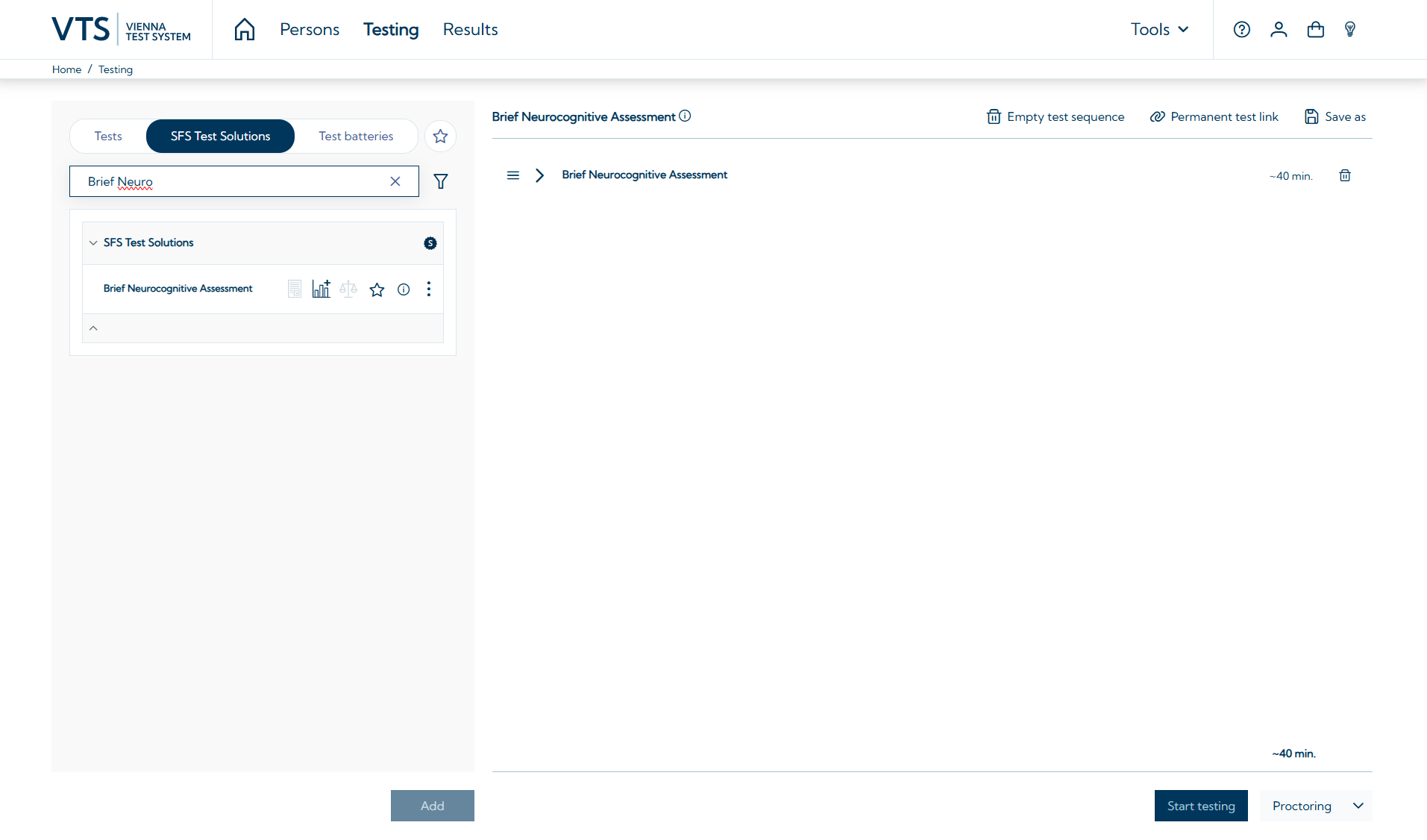
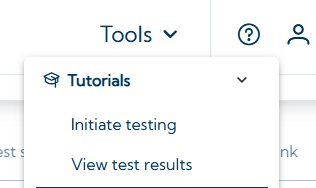
In addition you can also define favorites (tests, test batteries or SFS Test Solutions), display them on the landing page and also directly start the testing from there (under My favorites) 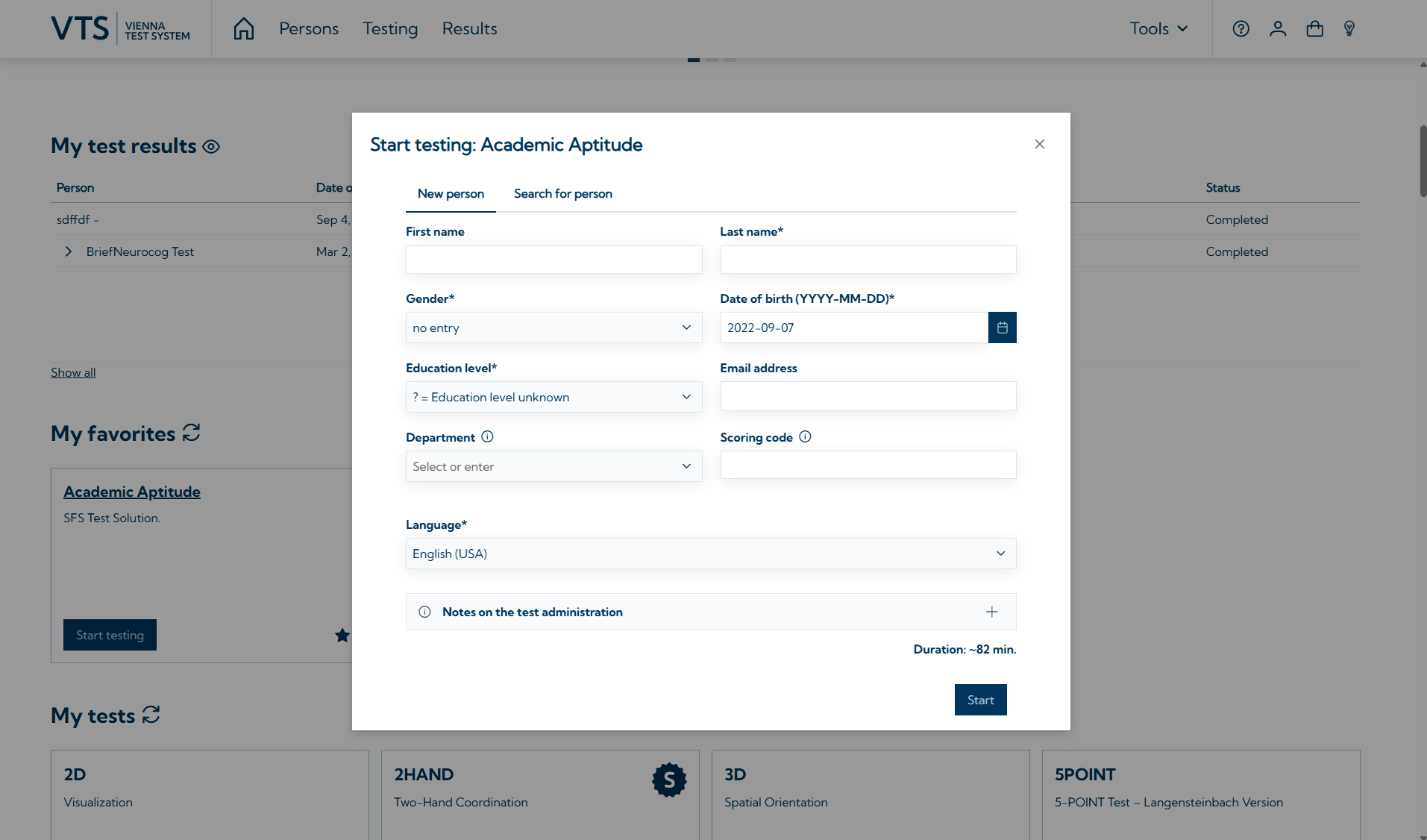
After configuring it in the settings you can also use Direct Testing to directly start testing over the Testplayer.
On the Testing tab you can create test sequences and start the testing: 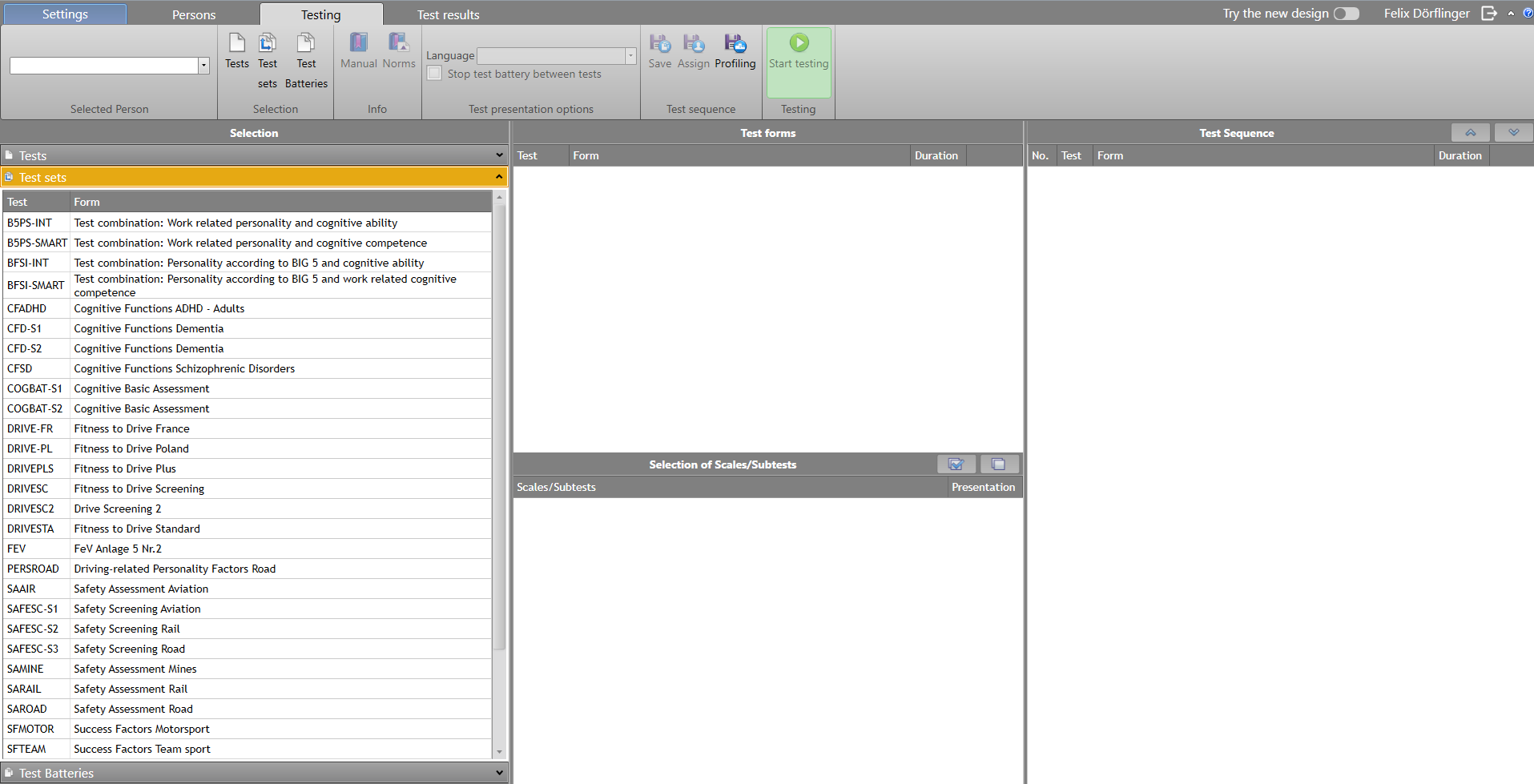
How can I view my test results?
You can view the test results on the Results tab 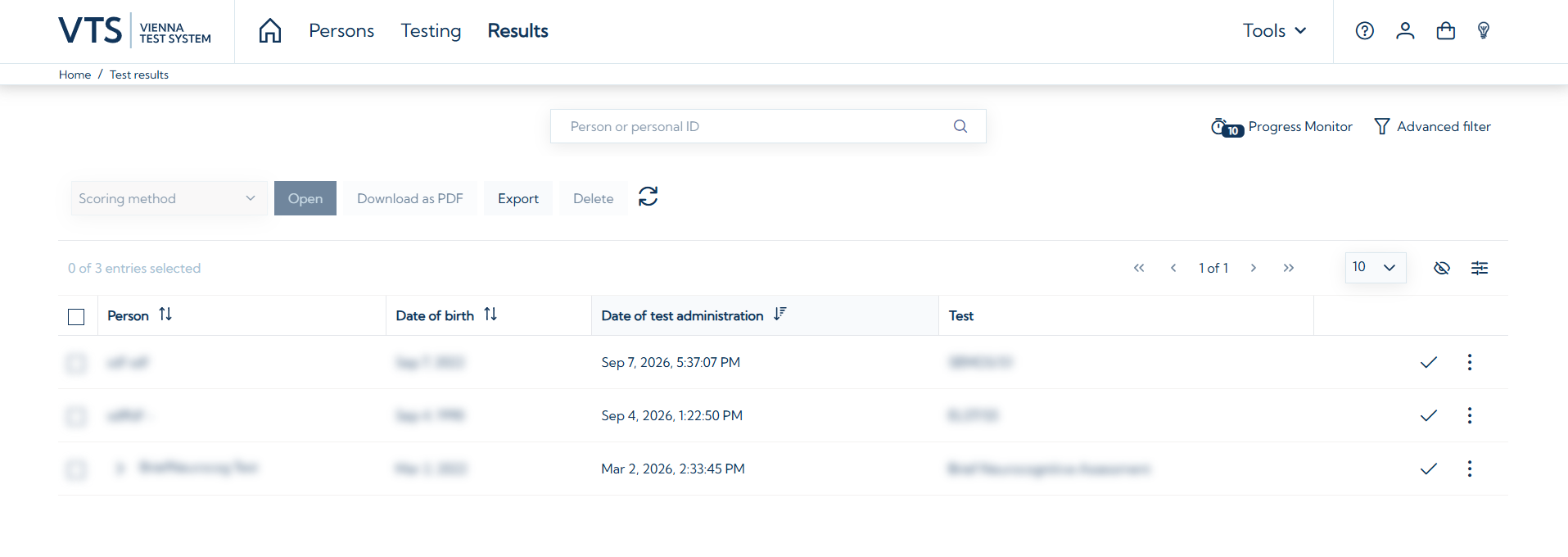
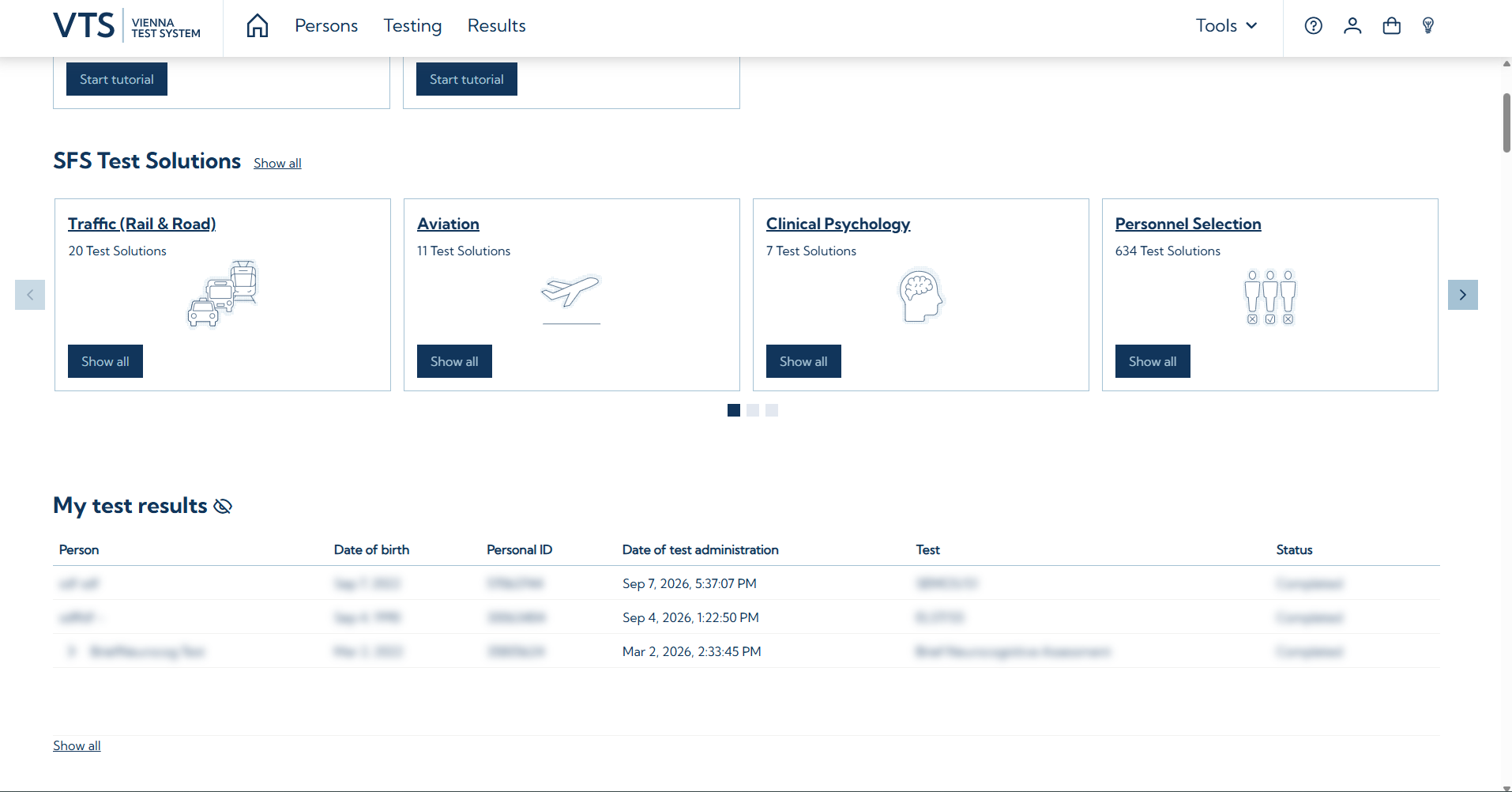
On the tab Test results.
How can I open the test manuals?
Go to the Testing tab, click on the 
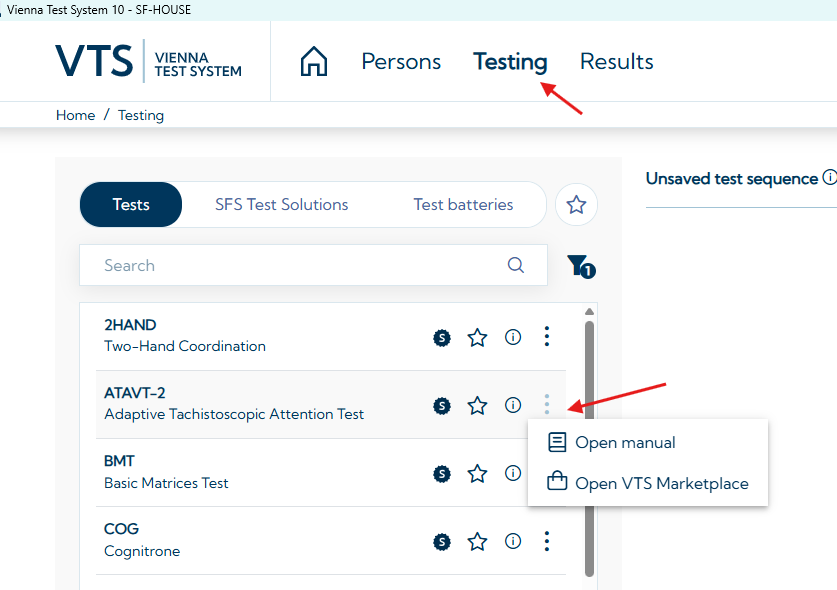
Alternatively, you can also open the manual directly when viewing a test result: 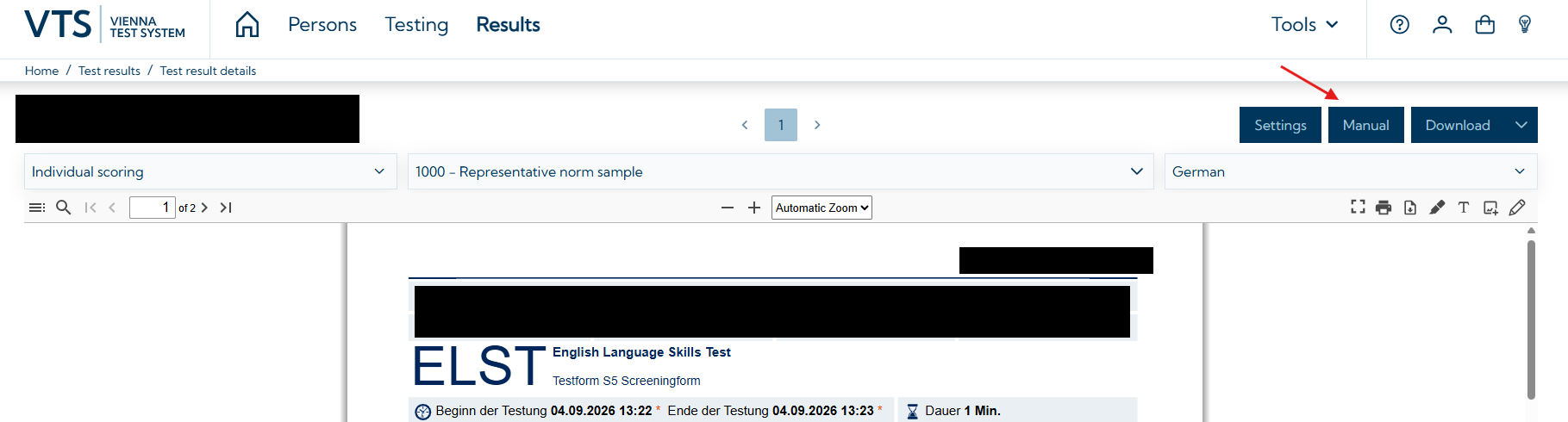
On the tab Testing after selecting a test under Info or when viewing a result under Info.
Additionally test manuals could be opened from the Settings.
Where can I check the status of active tests or test invitations?
For this purpose, you can use the built-in Progress Monitor tool. For more information, see: Progress Monitor. In the Progress Monitor you can also manually complete interrupted tests (to get the results) or restart testings. You can also retrieve the links for previously sent test invitations if you need them again.
An additional program had to be installed. However, checking the status of test invitations was not possible in the old UI or older VTS 8 versions.
Where do I change the settings?
You can find the settings in the top menu under the 
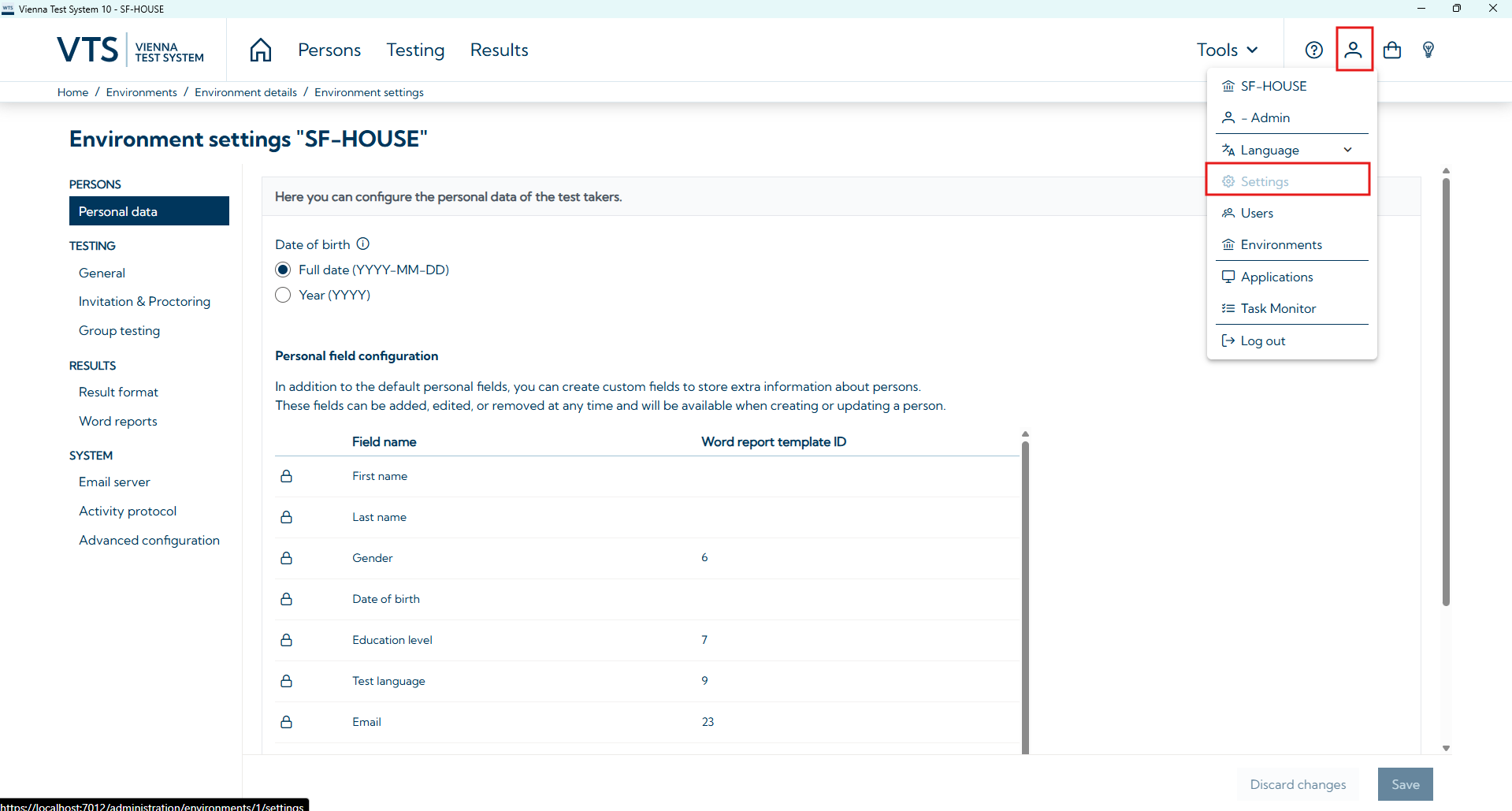
In the Settings menu you can find the Advanced configuration option that allows access to certain VTS 8 functions and settings that are not yet available in VTS 10 like automation options for data export (in VTS offline), the ranking module or the norm table explorer.
In the same menu you can also find the user management menu (Users). And after clicking on the name of your environment or multi-client, you can access the environment details with the License settings and License usage statistics 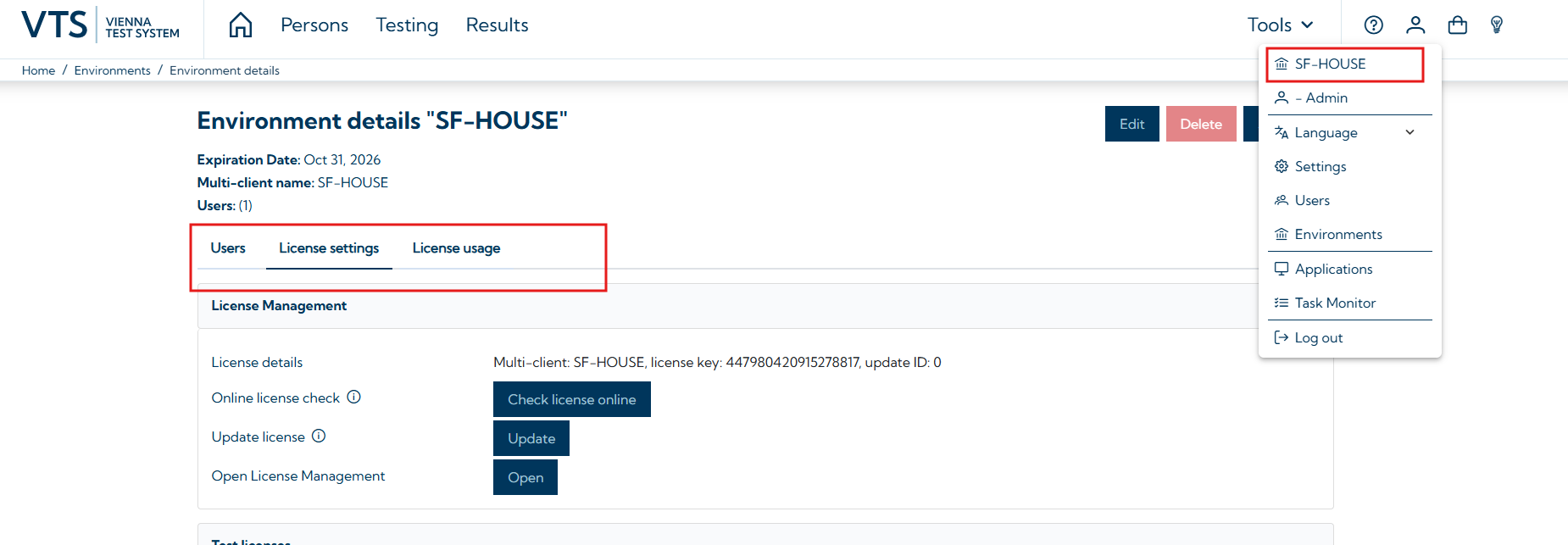
For more information see: Settings.
On the tab Settings.