
VTS supports backing up and restoring the entire system. This can be done either
-
on the same computer
-
on a different computer
However, a few important considerations apply, and all relevant files must be backed up.
The VTS stores data in two locations, both of which must be included in the backup:
-
The wts database in the SQL server
-
The WordTemplate folder under
%PROGRAMDATA%\schuhfried\media
Backing up files
-
We recommend setting up a folder backup (using Windows Backup or by manually copying the folder to a safe location) for the WordTemplate folder located at %PROGRAMDATA%\schuhfried\media.
-
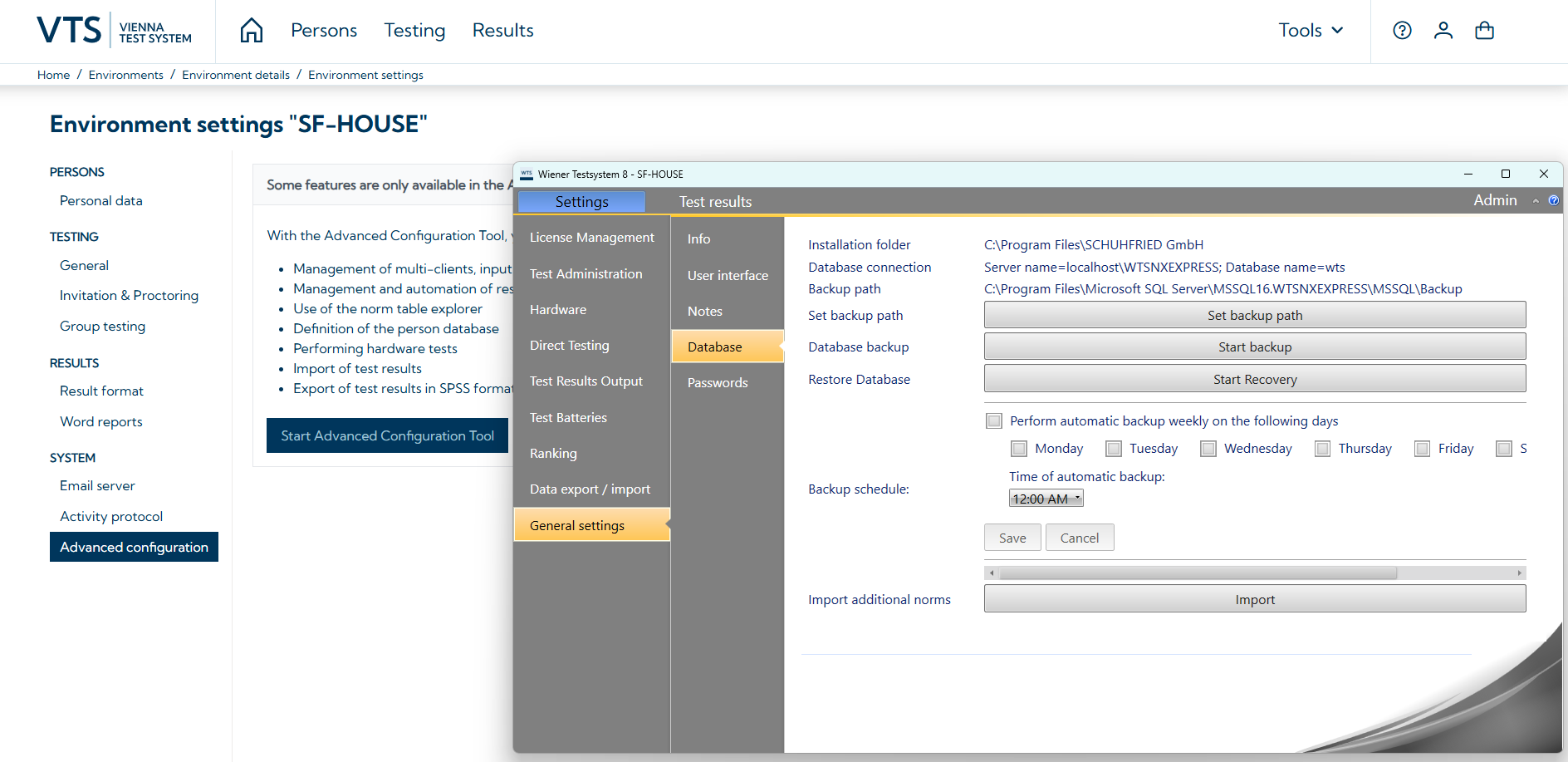
VTS includes a built-in feature for automatically backing up the SQL Server database. You can define a backup schedule that automatically backs up the database on a weekly basis. We recommend using this feature to set up regular backups.
-
Open the Advanced configuration, go to Settings → General Settings → Database and configure an automatic backup using the appropriate settings.
-
Make sure that the backup is only performed when the VTS is not in use.
-
-
-
In addition, a manual backup of the SQL database can be performed:
-
Stop the WTS Service.
-
Open the Task Manager → Services → right-click on WTS Service → Stop.
-
Copy the files in the folder:
%PROGRAMDATA%\Schuhfried\SQLDatabaseto another secure folder. -
Restart the WTS Service.
-
Restoring the VTS on the same computer
-
You can restore the VTS to a previous, functional state by importing the file created by the automatic backup using the Restart restoration function.
-
It is not possible to import a backup file that was created with an older VTS version.
-
-
Restoring the WordTemplate folder is not usually necessary, as the folder is still available on the same computer.
Restoring the VTS on a different computer
This procedure can be useful if you need to use a new PC and want to transfer the data from the VTS that was installed on your old PC. To do this, proceed as follows:
-
Perform a backup on the old computer and save the SQL database wts as described above.
-
Perform a manual backup of the WordTemplate folder under %PROGRAMDATA%\schuhfried\media (copy it to a USB stick, for example).
-
Install the VTS on the new PC (see Installation and configuration).
-
Copy the files created with the backup from the old computer to the corresponding folder on the new computer.
-
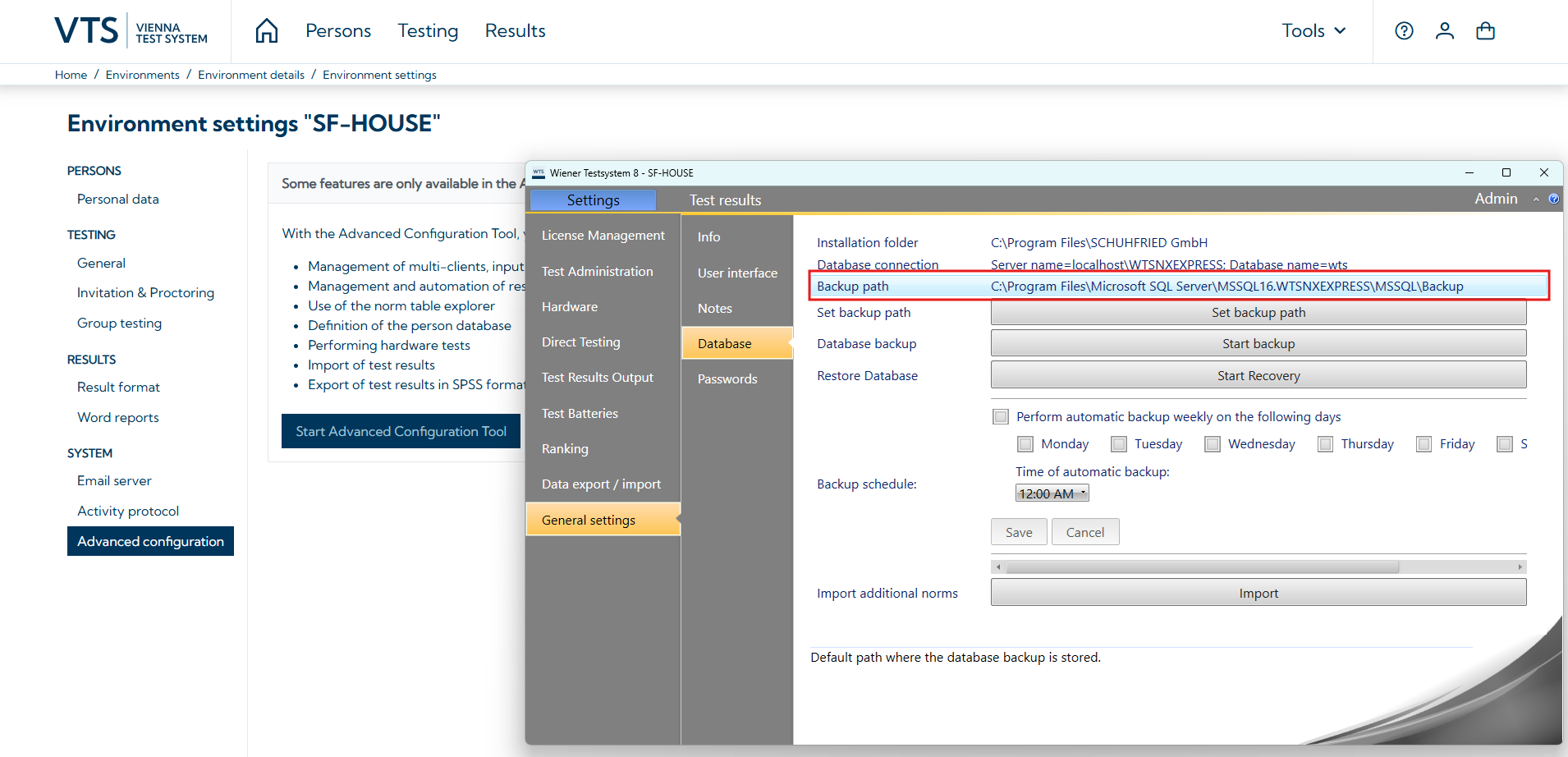
The path where the backup files of the SQL database are stored can be found in the Advanced configuration.
-
-
Start the recovery via Start Recovery.
-
Copy the backed-up WordTemplate folder to
%PROGRAMDATA%\schuhfried\mediaon the new computer. -
If you did not select ‘localhost’ as the server address in the server settings when installing VTS (i.e., you are hosting VTS at an address other than localhost), you must configure the SQL database using the
update_identityserverconfiguration.sqlscript.
Notes
-
The VTS version on the old and new PCs must be the same.
-
The appropriate licenses must be available for installation on the new PC.