
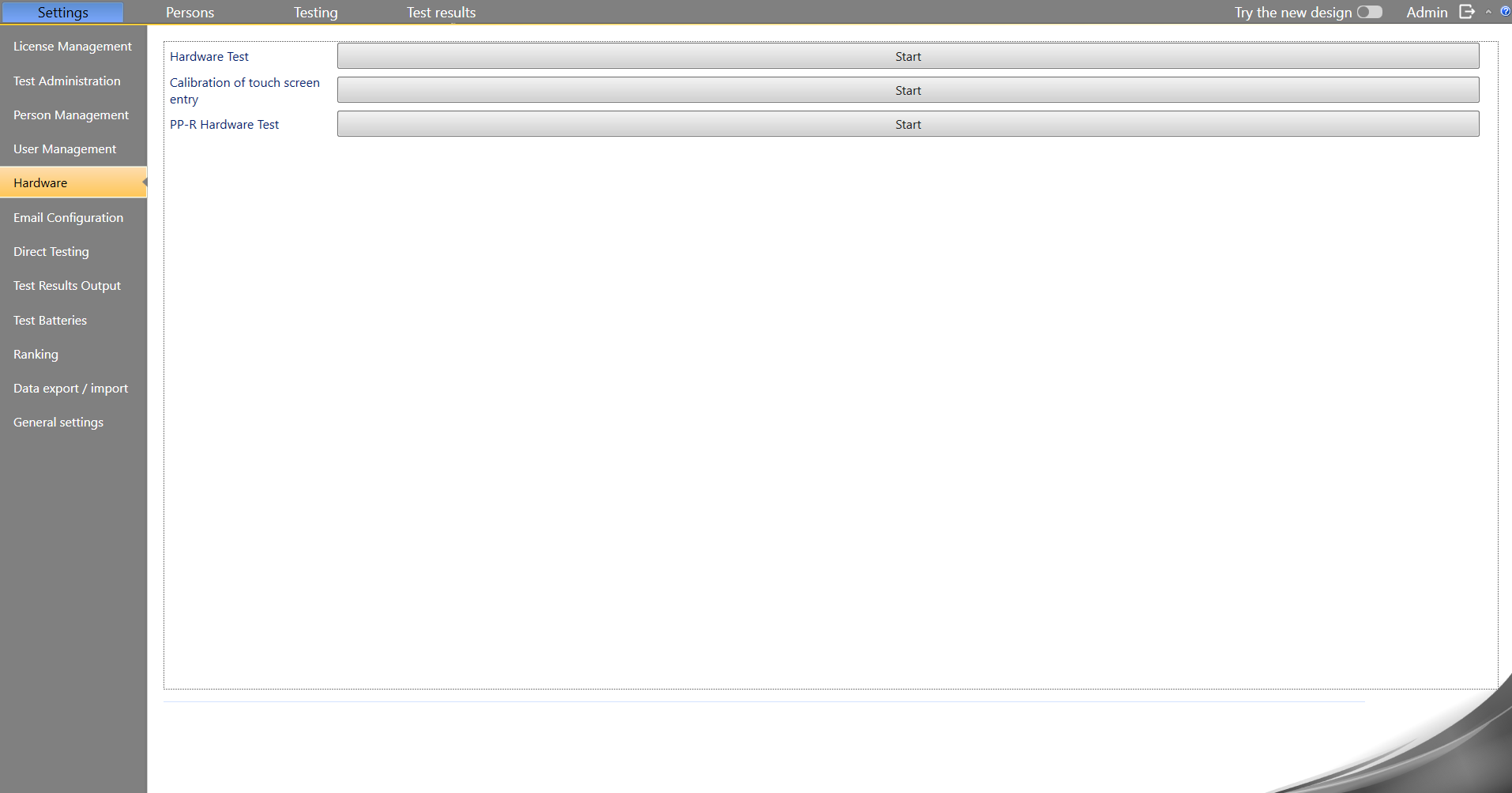
In the VTS AdminClient you ca start the hardware tests for special input devices under Settings → Hardware:
-
To check one of the following devices, click the Start button next to Hardware Test:
-
MLS work panel
-
Flicker tube
-
Peripheral Perception (PP-HW – with serial interface and solid aluminum base plate)
-
-
To check the Peripheral Perception PP-HW2 (USB interface), select Start next to PP-R Hardware Test.
Hardware Test
Use the hardware test to check the functional suitability of the peripheral devices of the Vienna Test System after completing the installation.
At the beginning, a window will appear showing which devices are connected. Please verify that “Yes” appears for all your devices. After clicking OK, the hardware test will start with the first device entered.
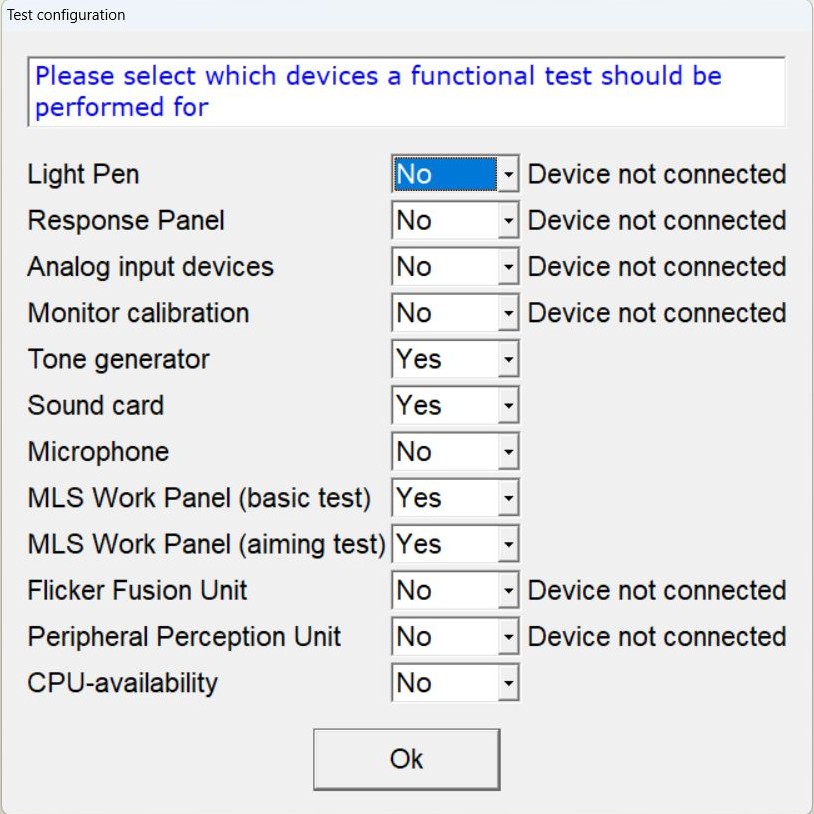
The program guides you through the test for each device. Please follow all indicated steps carefully. After completing all hardware tests, you can print a report as confirmation.
Hardware test using the example of the MLS Work Panel
-
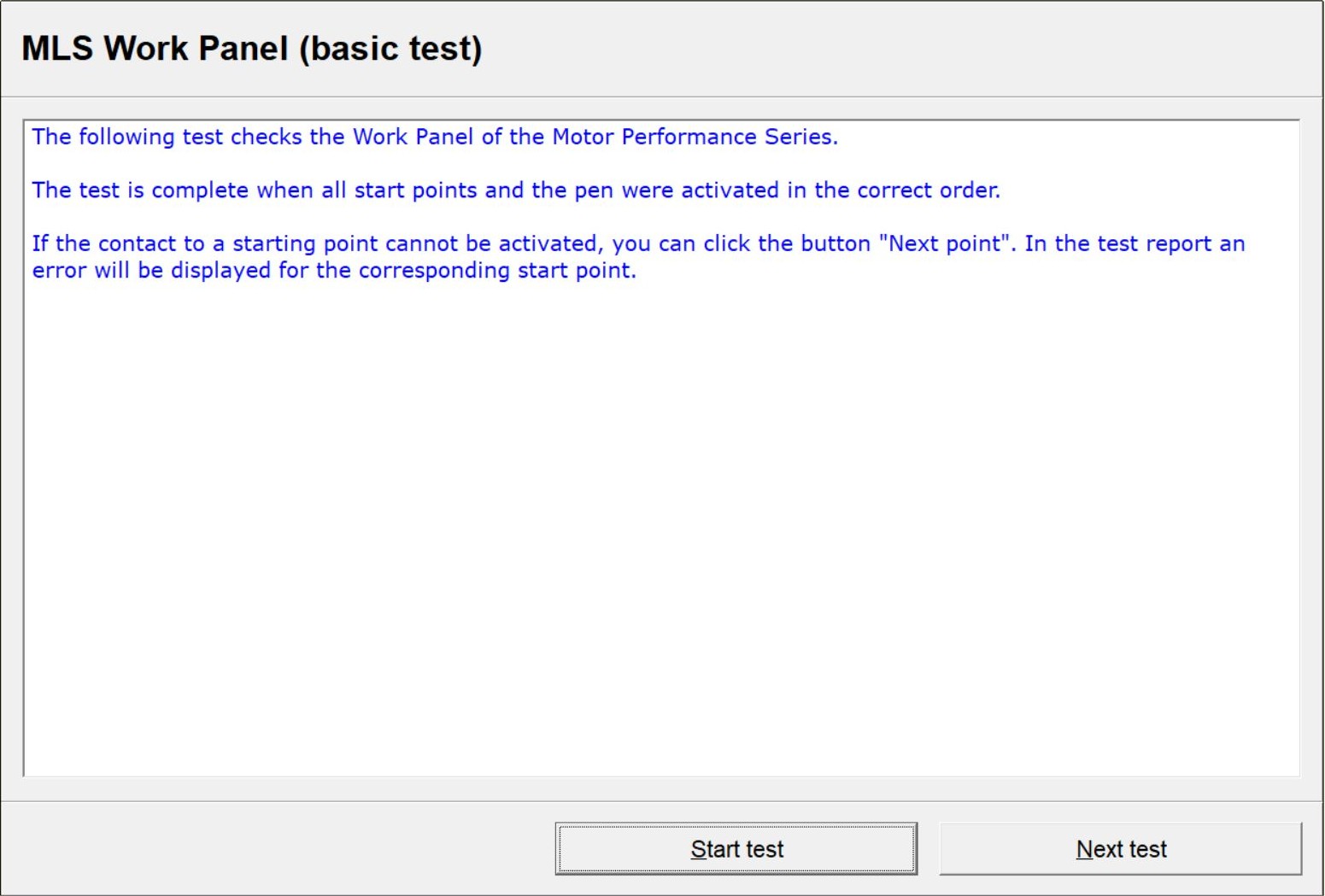
Each test begins with an introduction explaining how to perform the test. Click on Start test to begin the test. If you want to skip the test, click on Next test.
-
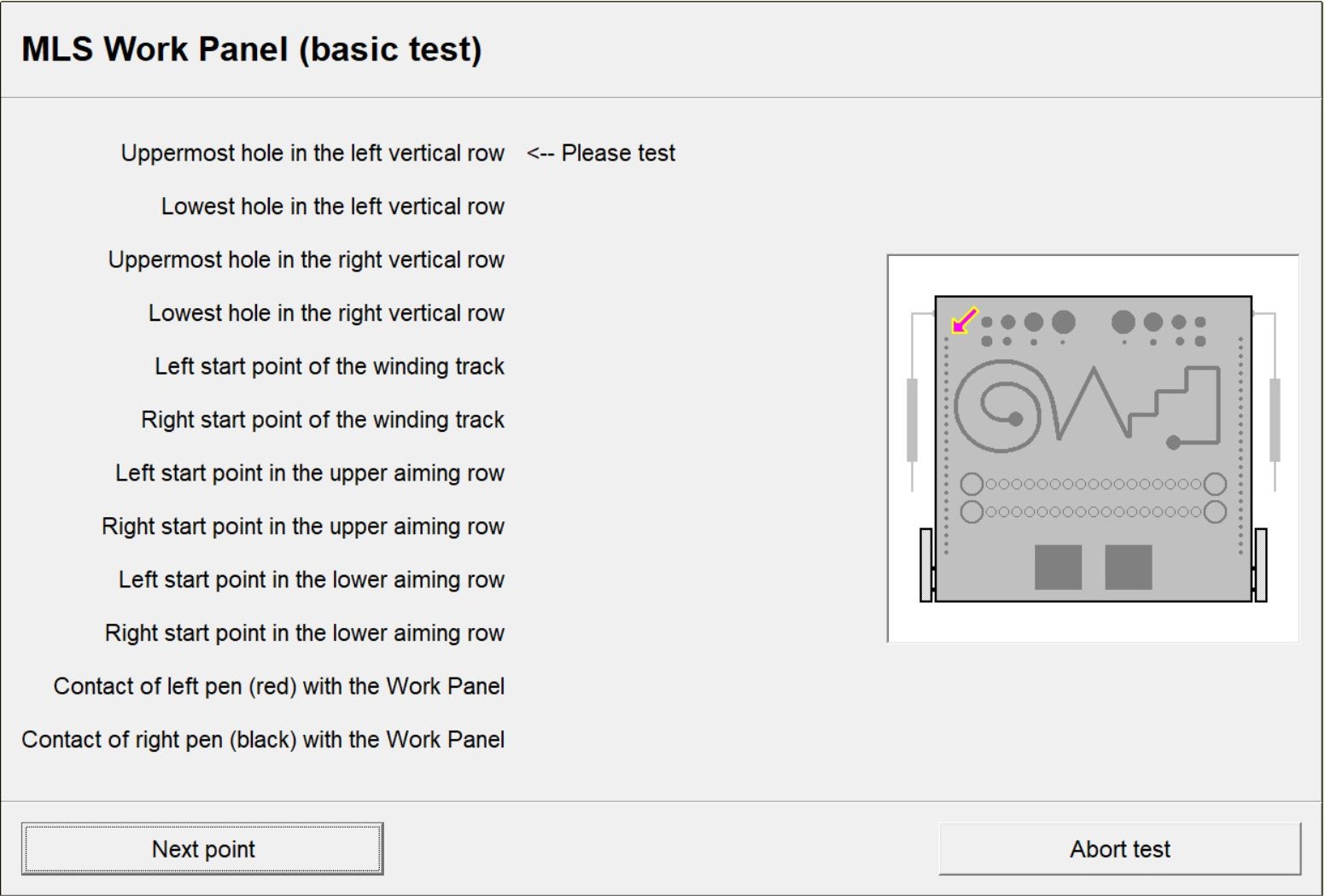
You will be asked to touch the sensor in selected holes on the MLS Work Panel with the pen. Once you have done this, you must touch a few more contact points with the pen. If a contact point does not respond, click on “Next point” to skip that point. Points that have not been completed will be noted in the report.
-
After the test has been completed, click “Conclude test” to finish it. The test for the next hardware component will then start automatically.
PP-HW2 hardware test
After starting the PP-HW2 hardware test, you will be asked to enter the HW device number and the person performing the test. The device number can be found on the device label on the back side of the LED-panels of the PP-HW2.
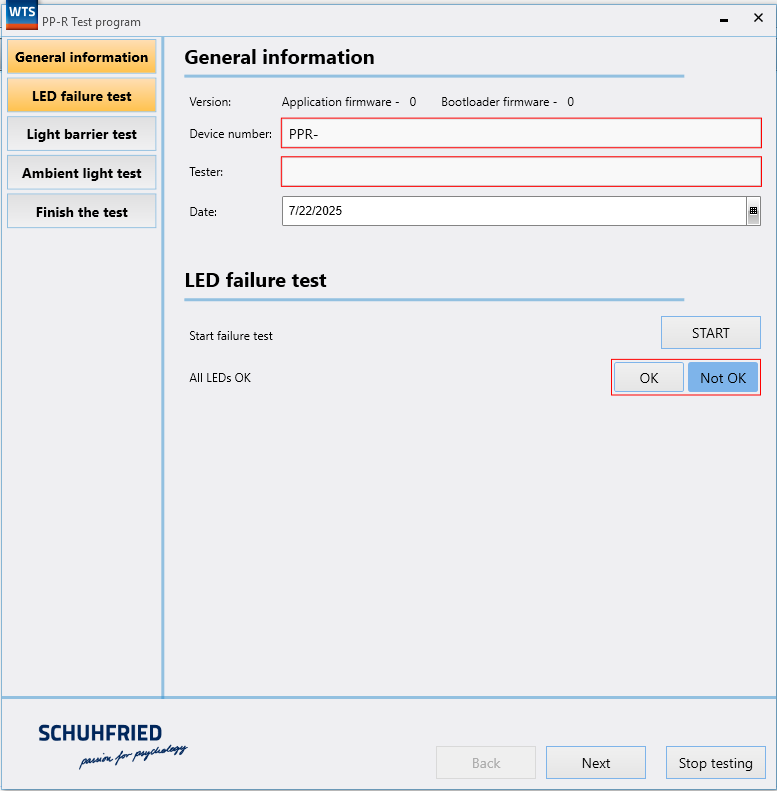
Perform the test step by step by clicking on START for each individual test and confirm with OK if the results are as expected. This means that the LED-panels are working properly and the measured ambient illumination is within the specified range (specified under Limit).
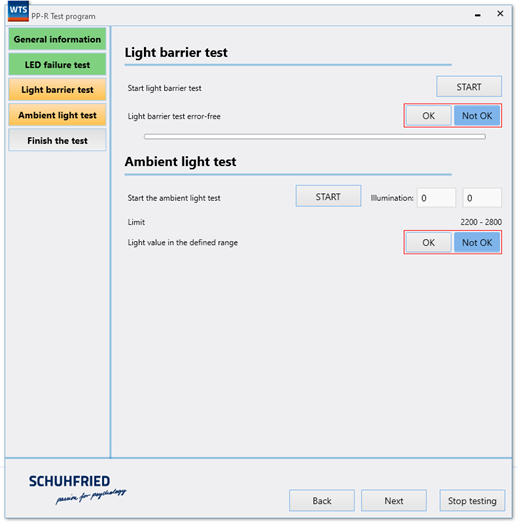
At the end, a test report can be printed.
Troubleshooting
If a peripheral device isn’t functioning properly, try the following steps to locate and resolve the problem:
-
Disconnect the device and reconnect it
-
Restart Windows
-
Connect the device to a different USB port (the device driver may need to be reinstalled)
-
Disconnect other USB devices
-
Connect the device directly to the computer without a USB hub